


Friends, now the era has become digital and these days, at some point or the other, we definitely read the need for an email ID. In today’s time, it is very easy to create your own email ID, in today’s post we will learn step by step how to create your own email ID easily and in just 1 minute from your phone for free?
To create an email ID, you must have a mobile number.
How to create email ID from mobile?
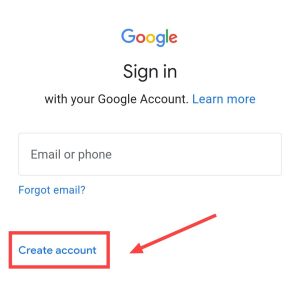
1. To create an email ID from mobile, first you have to go to the Google sign in page. You can go by clicking on the link given below.
2. In this page you will get to see the login page in which you will be asked to log in by entering your email ID. Also in that page you will also see a button of Create account on the left side. You have to click on that button.
3. After clicking that button, two options will appear in front of you for personal use or for business purpose, if you are currently creating an email ID for personal use then click on it.
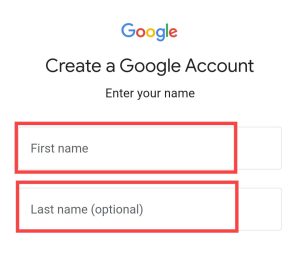
4. After clicking on this button, a new page will open in front of you, in which you have to write your First Name and Last Name and then click on the Next button again.
5. Again a new page will open in front of you, in this page you will have to select your date of birth and gender and click on the Next button.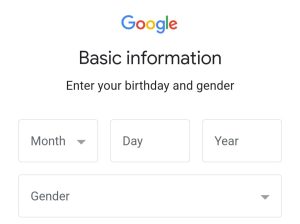
6. After clicking on this button, Google itself will suggest you some username or it will ask you to enter the username manually. So if you want to enter the username yourself then you can enter your username on the create Gmail address below and then click on the Next button.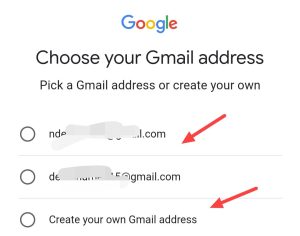
7. Now you will be asked to create a password, then create the password and then click on the Next button again.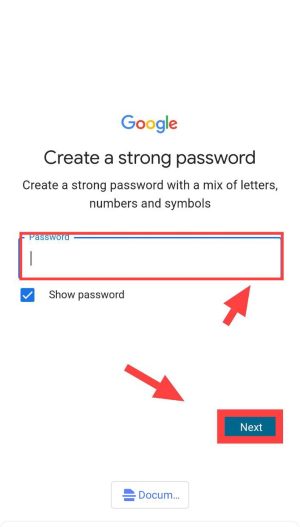
8. Now you will be asked to enter your mobile number, so if you want to enter your mobile number then click on the Yes I’m in button below.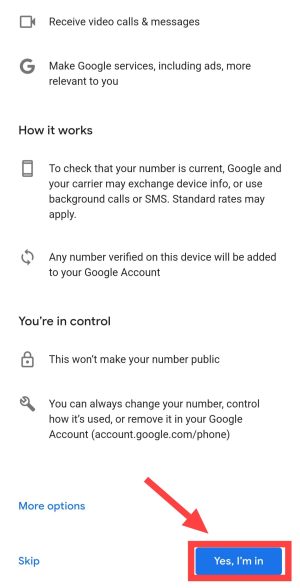
9. After doing this, the privacy policy page will open in front of you in which you will have to accept the terms & conditions, then click on the I agree button.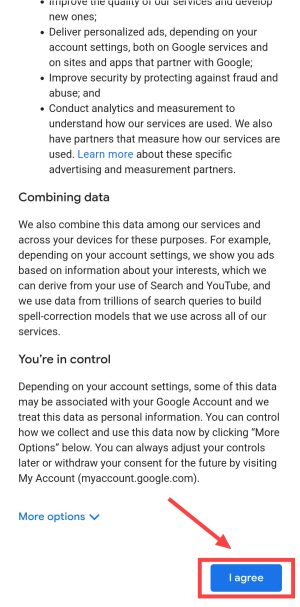
By doing this, email ID will be created, after this you can login into applications like YouTube Play Store and run those applications comfortably.
You can also watch this video for more information;
How to check mail on your email ID?
#1. To check the message received on your email ID, you will first have to open the Gmail application on your mobile.
#2. After the Gmail application is opened, if you have not logged in then login first with your email ID and password.
#3. Now the inbox of your email ID will appear on your homepage. So from here you can easily see your messages. If you are not able to see all the mails here then you have to click on 3 dots on the left side.
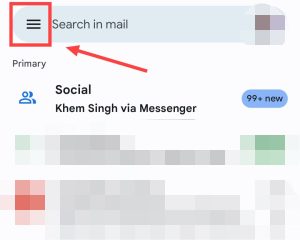
#2. Now here you have to go to All Mail option.
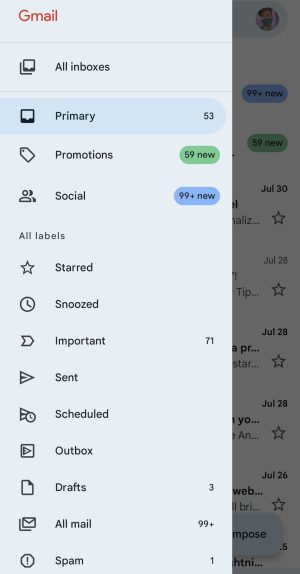
Now you will see all your mails. You can easily read them, and even delete them.
How to send mail to someone from your email ID?
1. First of all, open the Gmail app in your phone, now you will see a button written as compose with a pencil, click on it.
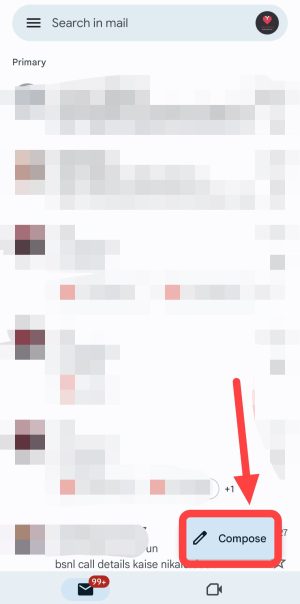
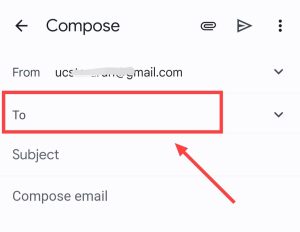
2. As soon as you click on that button, a new page will open in front of you. In this page you will see the option of To, Subject and Compose mail in front of which you have to fill the information.
3. Now to move ahead and send mail to someone else, you will have to fill the email ID of someone else in place of To.
4. In place of Subject, you have to fill the title of the email as we used to write while writing a formal letter.
5. After this is done, you will have to write the main part of your email in place of compose email.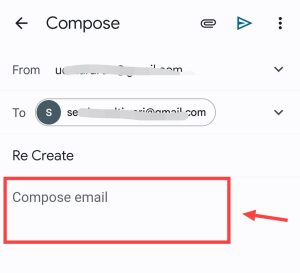
6. After writing the e-mail, you have to click on the Arrow type button visible above and send the email. In this way you can send email to anyone very easily.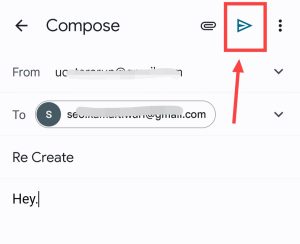
Related questions
If you create new Gmail accounts repeatedly with the same number, Google will not allow it. But after a few days you can create a new Gmail ID with the same number. You will be able to create about 7, 8 Gmail IDs with one number. Along with that, you can also create your email ID on Yahoo Mail, Yandex Mail with the same number.
You can create an email ID without a mobile number on platforms like ProtonMail, Mail.com or GMX Mail.
Also read:





![[FREE] How to call block number? (easy way)](https://www.techtrends.blog/wp-content/uploads/2026/01/FREE-How-to-call-block-number-easy-way.webp-330x220.webp)