


If you use Android mobile then you must be using Google Play Store to download your favorite apps and games. If you have searched something on Play Store which you now want to delete, then in today’s post we will learn how to delete the search history of Play Store.
How to delete Google Play Store search history?
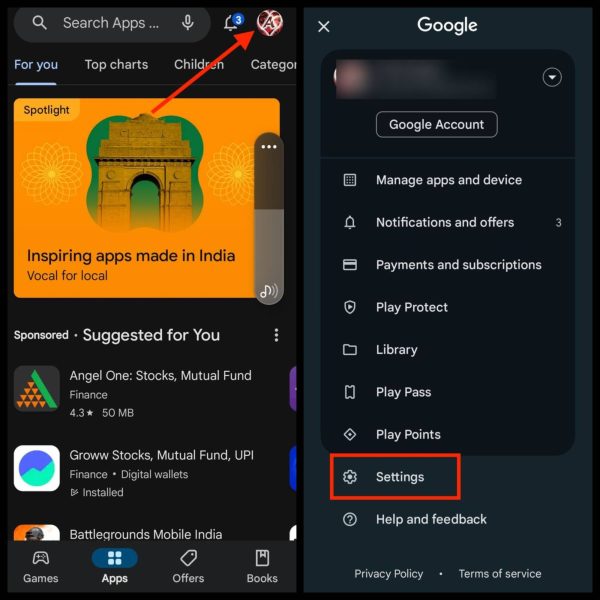
1: First of all open Google Play Store application in your phone and Go to Settings by clicking on the profile icon above.
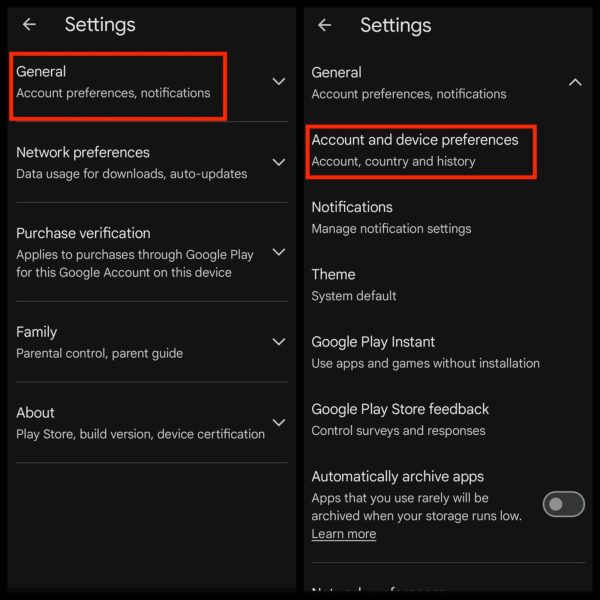
2: Now you have to click on the General option and then go to Account and device preference.
3: Now on the next page you have to click on the option Clear device search history under the history section. And after that click on Clear History.
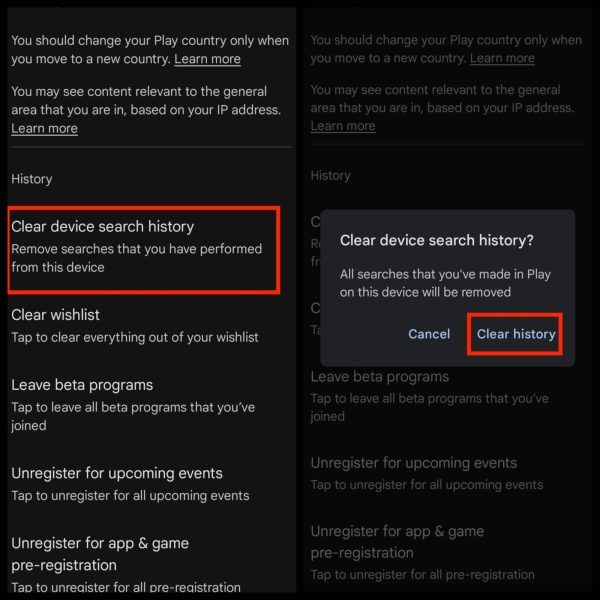
Now your search history has been deleted.
Do you know that apart from the search history on Play Store, your download history is also saved? Yes! Whatever app you download, even if you uninstall that app later. But all your download history is also saved in Google Play Store.
Let us see how to delete your download history from Play Store?
How to delete download history from Play Store?
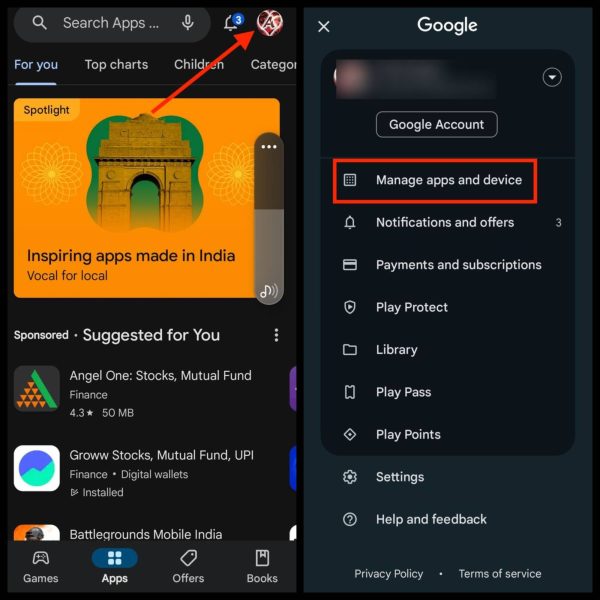
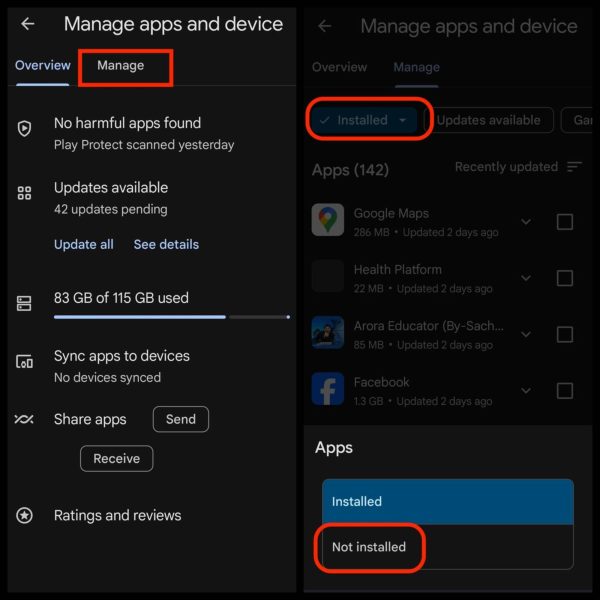
1: first of all you Google Play Store Open it and then click on your profile icon and go to Manage apps and device.
2: Then after this you have to click on Manage. Now you will see a list of all the apps that you have downloaded till now.
3: But we have to delete the history of only those apps which we have now uninstalled. So for that, click on Installed and select Not installed.
If you want, you can also delete the history of all the apps. You just have to select everyone and remove them.
4: Now you will see a list of all those apps which you had downloaded earlier, but are not using now. So now to delete their history you just have to select them all.
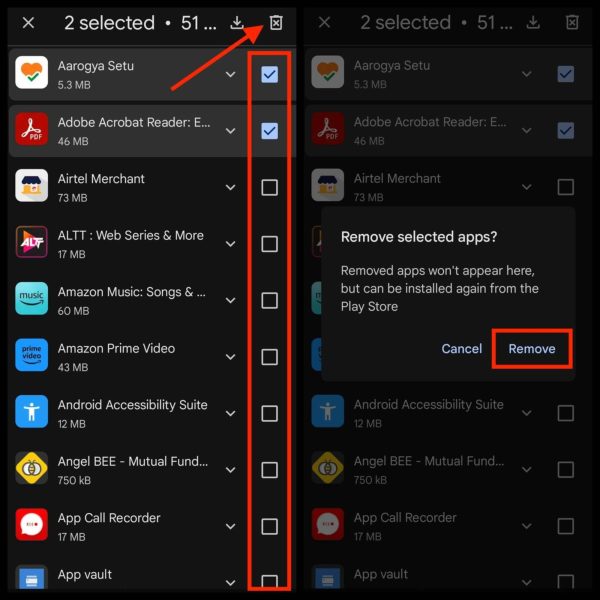
After selecting the apps, click on the Remove button above and then click on the Remove button.
Also read:







![[FREE] How to call block number? (easy way)](https://www.techtrends.blog/wp-content/uploads/2026/01/FREE-How-to-call-block-number-easy-way.webp-330x220.webp)