

In today’s time, it is very easy to delete YouTube channel, you can delete your channel from your mobile in just 1 minute. In the year 2022, the method of deleting YouTube channels was changed. In such a situation, if you try to delete your YouTube channel in the old way, your YouTube channel will not be deleted. The latest method is described in this post below.
Once you delete your YouTube channel, all your YouTube data like uploaded videos, community posts, likes, subscribers, everything will be deleted forever, which cannot be recovered.
How to delete YouTube channel from mobile?
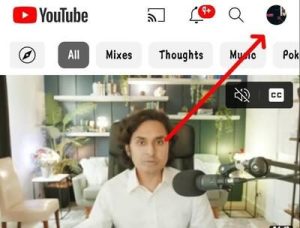
1. First of all, open the YouTube app on your phone and then click on the profile icon visible on the top right side.
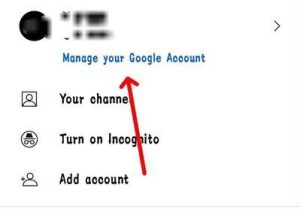
2. Now here you have to click on Manage your google account.
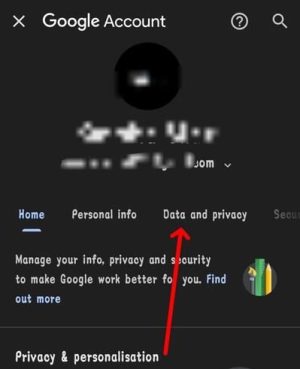
3. Now Google’s page will open in front of you. Here you will get information about Data & privacy Have to click on the option.
4. Now you have to scroll down this page. And Click on the option of Delete a Google service.
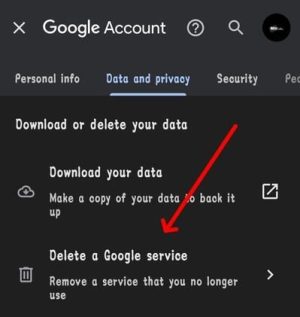
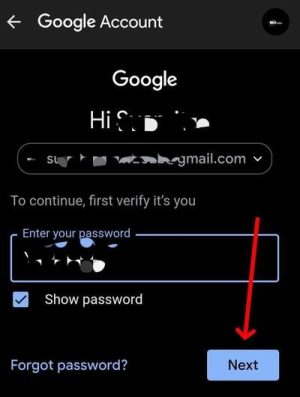
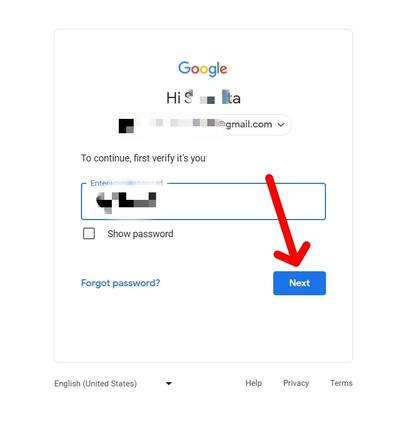
5. Now here you have to enter the password of your Gmail ID and click on next.
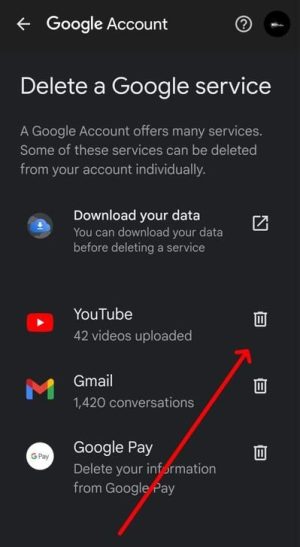
6. Now you will see the icon of YouTube in front of you, you have to click on the delete button visible in front of it.
7. As soon as you click on this button, you will see 2 more options. First I want to hide my channel and second I want to permanently delete my channel. So you have to click on the second option here.
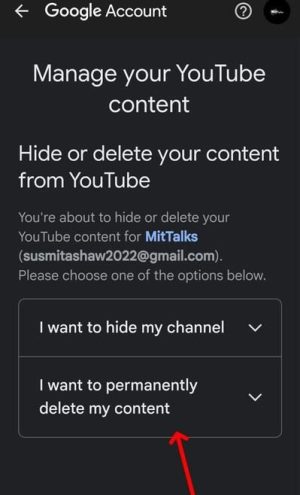
8. Now here, after clicking on all the terms & conditions buttons, you have to click on the Delete my content button.
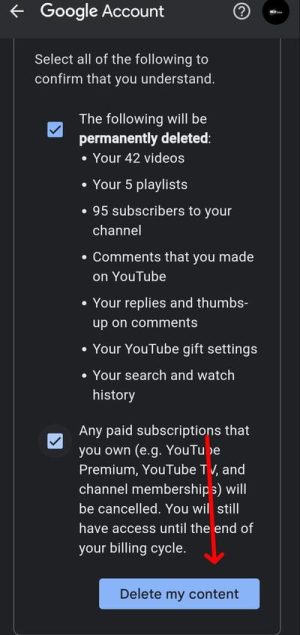
After clicking on the Delete button, your YouTube channel will be deleted. So in this way, you can easily delete your YouTube channel by just following some simple steps.
How to delete YouTube channel from computer?
1. First of all you should go to your computer YouTube studio Have to open it. And then you have to login to your YouTube account.
2. Now here you have to click on the settings options from the options visible on the left side.

3. After clicking on settings, you have to go to the channel option.
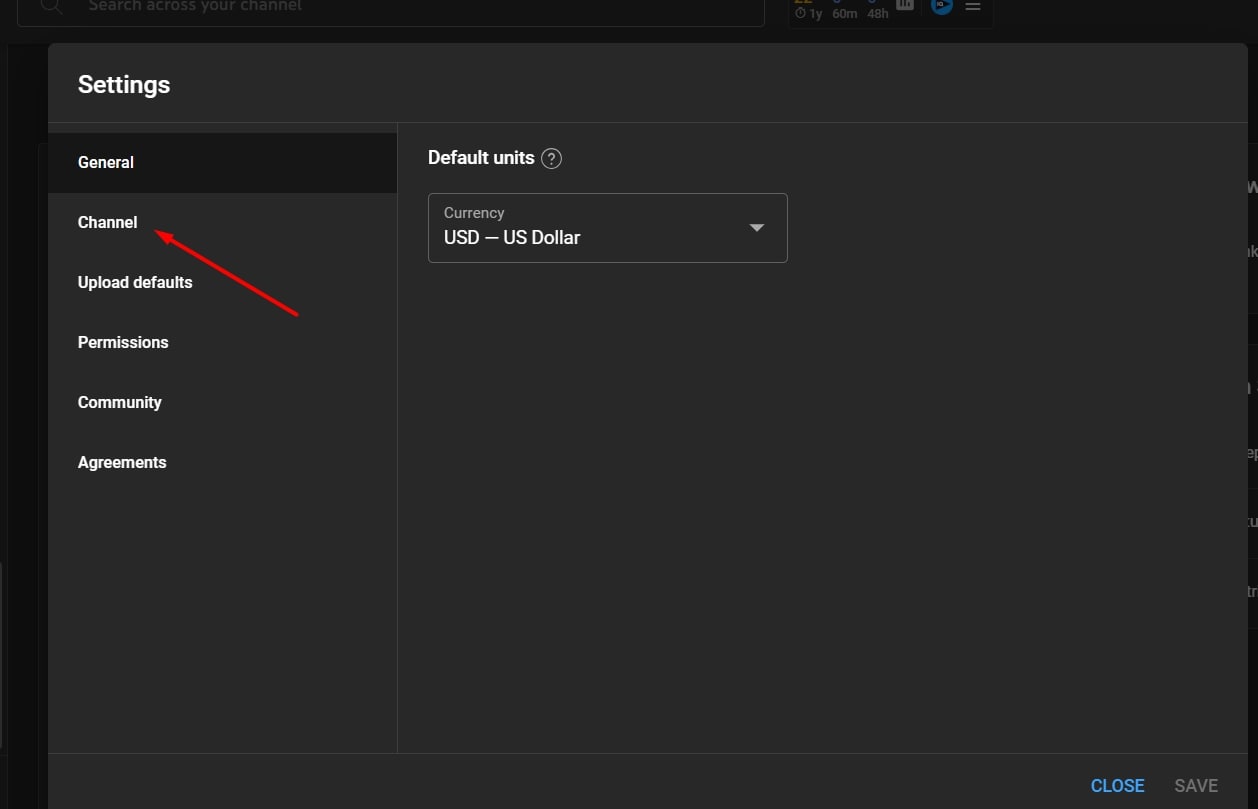
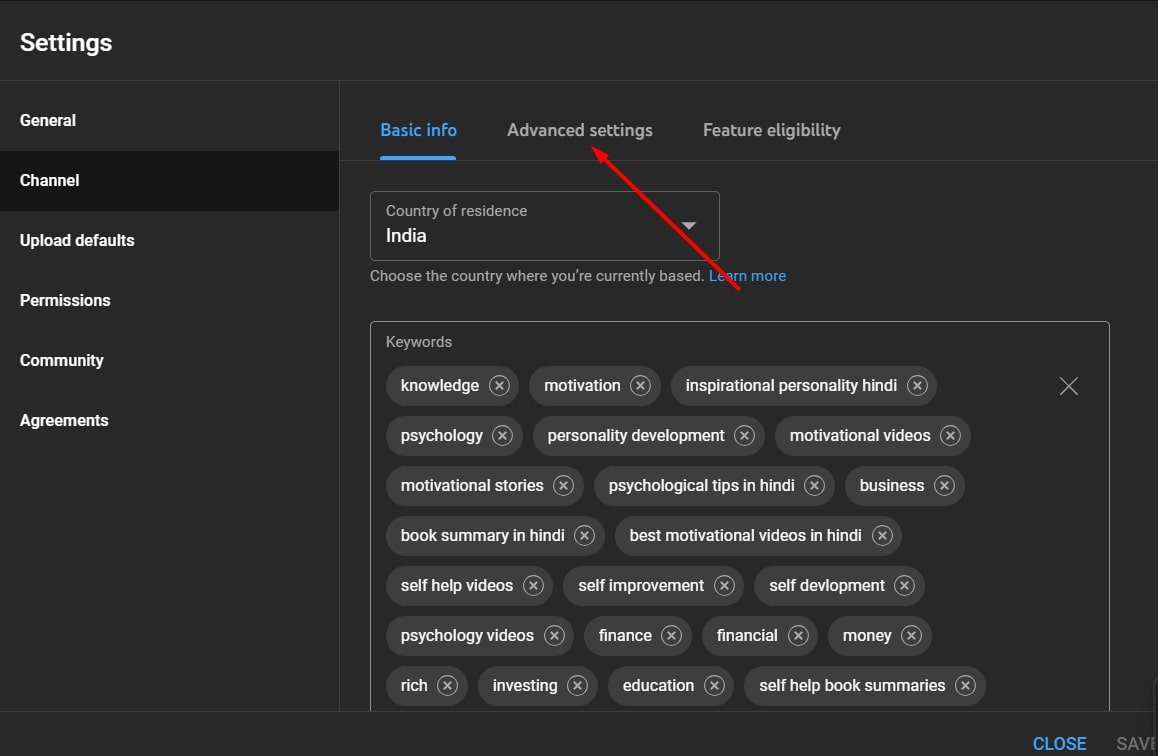
4. Now here you have to click on the option of advanced settings.
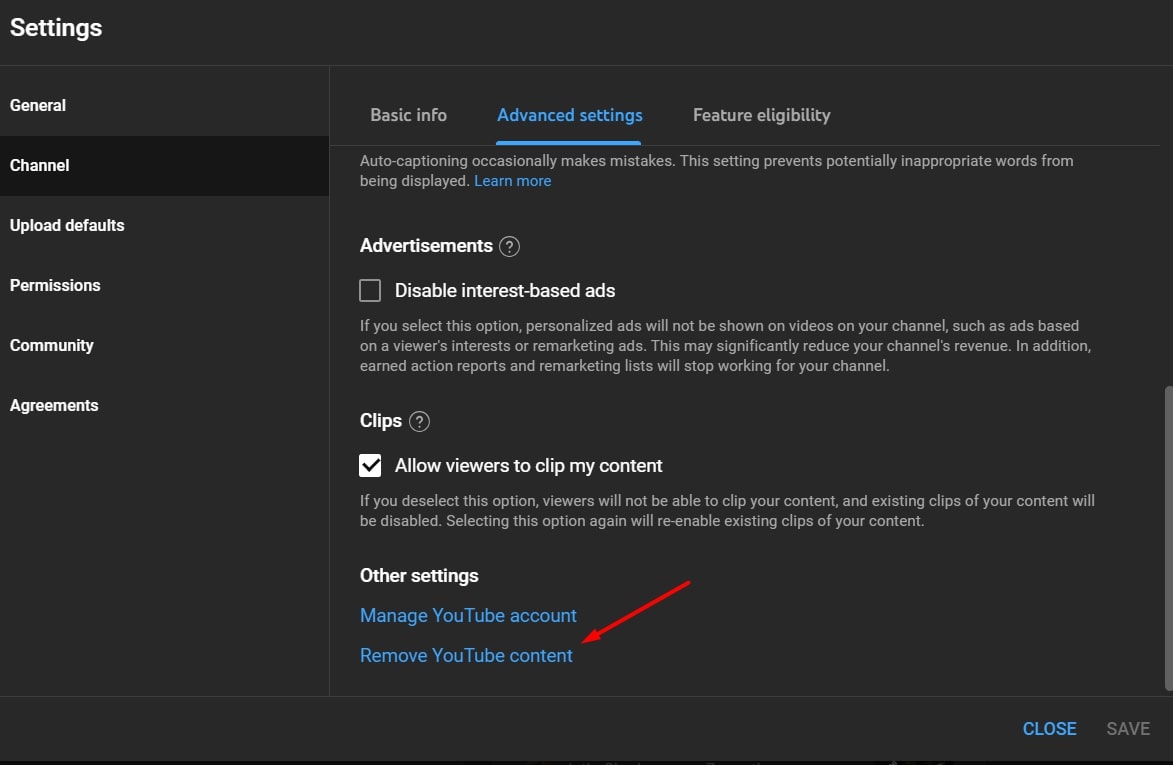
5. Now scroll down a bit and you will see an option of Remove youtube content in Sky Blue colour. You have to click on it.
6. After clicking on that option, Google Login page will open in front of you and here you have to verify it by entering your password.
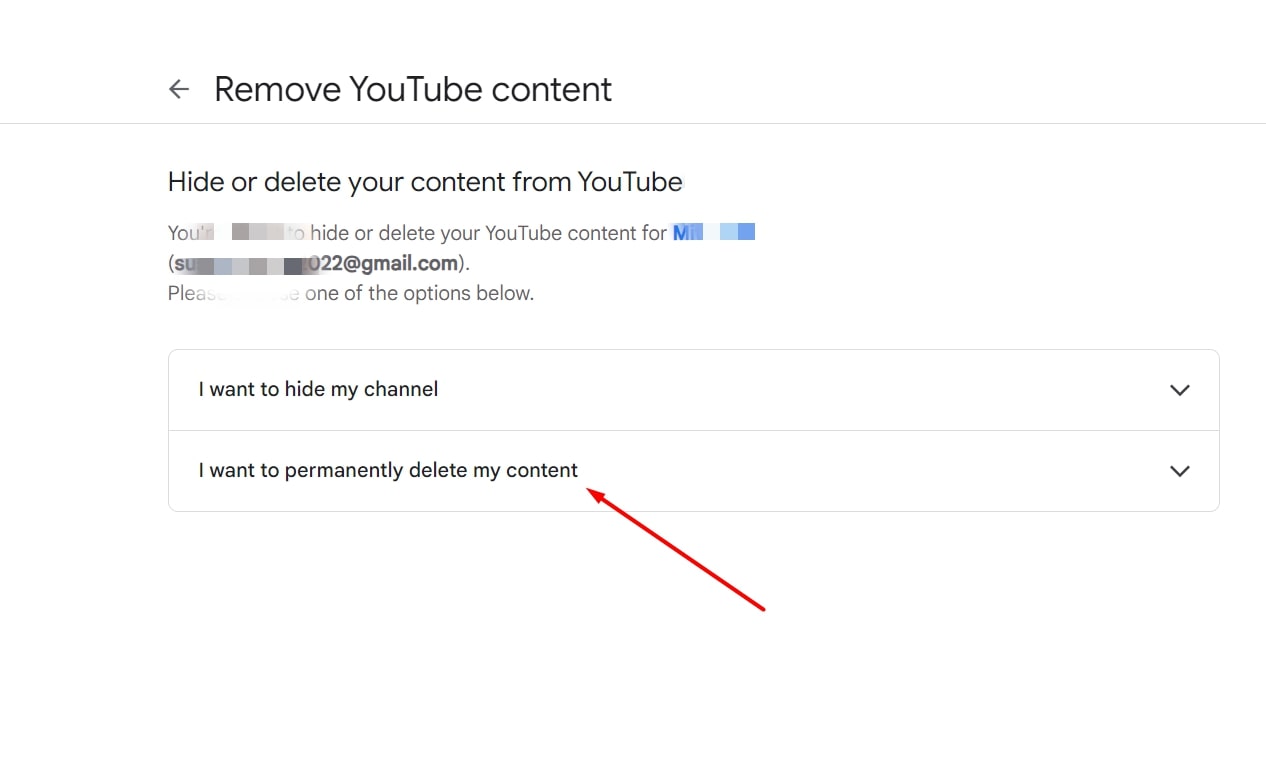
7. After verifying email ID Now here you have to click on the option of I want to permanently delete my content.
8. Now after ticking both the empty boxes here, you will see a blue colored button of Delete my content, you have to click on that button.
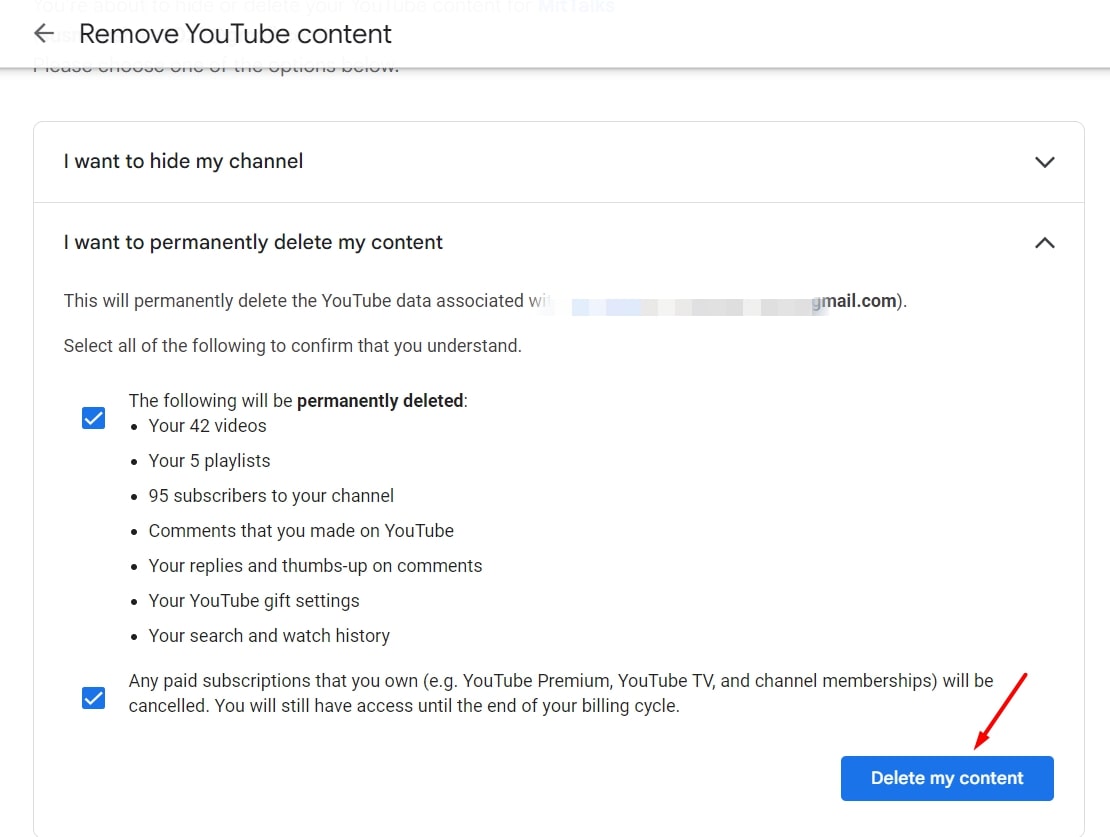
As soon as you click on that button, your YouTube channel will be deleted.
Related questions
After deleting your YouTube channel, Google gives you about 2 weeks time, during which you can prevent your channel from being deleted by logging into your account. But after 2 weeks, your channel and all the data related to it is deleted by YouTube, which you cannot recover.
No. When you delete your YouTube channel, only your YouTube account and all the data related to it like channels, videos, playlists, comments or subscribers etc. gets deleted and not your entire Google account.
Yes. You can start a new YouTube channel with the same Gmail ID.
It is not possible to delete a YouTube channel without logging in. If you want to delete your YouTube channel, then for that you will have to login to your Gmail ID from which the channel which you want to delete is created.
Also read:






![[NEW*] Jio Free Data Code 2025 (200% Working)](https://www.techtrends.blog/wp-content/uploads/2026/01/NEW-Jio-Free-Data-Code-2025-200-Working.webp-330x220.webp)