
It is very easy to use WhatsApp in mobile. For this reason people use WhatsApp on their phones only. But sometimes there is a need to login to WhatsApp in laptop also. It is very easy to use WhatsApp in computer or laptop, you can use WhatsApp in the browser of your laptop with the help of WhatsApp web. Let us know how?
How to use WhatsApp on your computer or laptop?
1. First of all you have to open the browser in your laptop. web.whatsapp.com But have to go. After that a page like this will open in your laptop.
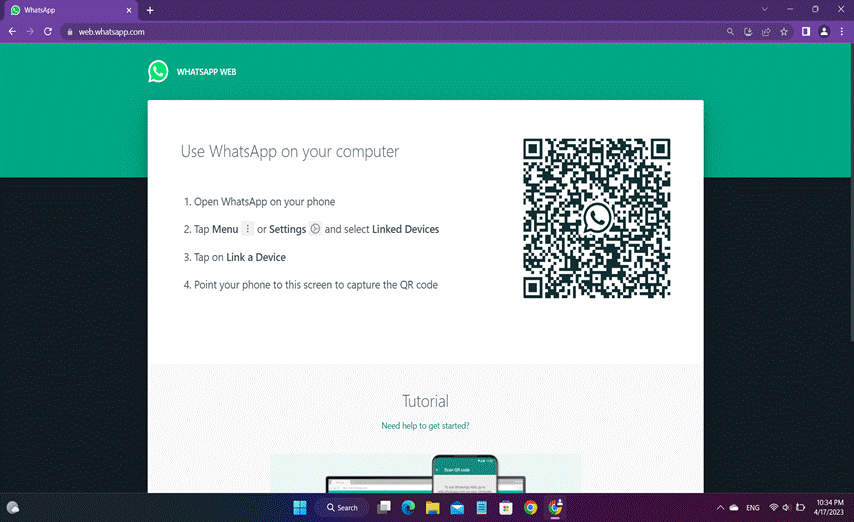
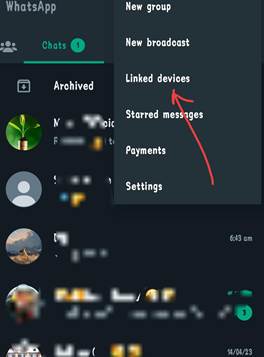
2. So now you have to take your phone and then open WhatsApp in it and click on 3 dots.
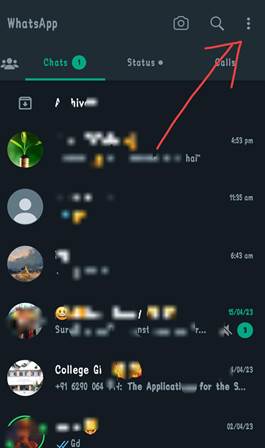
3. After clicking on 3 dots, this type of pop up will open in front of you. Here you will see an option of Linked device. You click on it.
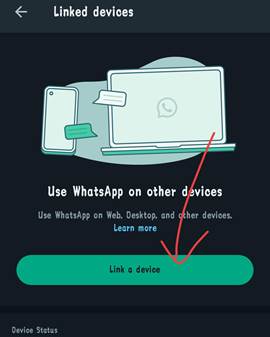
4. Now here you have to click on the Linked a device button.
5. After clicking on this button, this type of scanner will open in front of you.
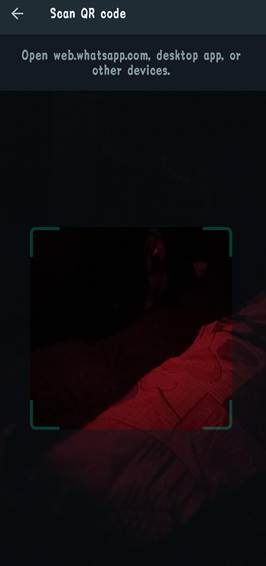
6. So now you have to scan the QR code visible on the laptop using the scanner.
7. After the QR code is scanned, WhatsApp will be connected to your laptop and within a few seconds your WhatsApp will open on the laptop.
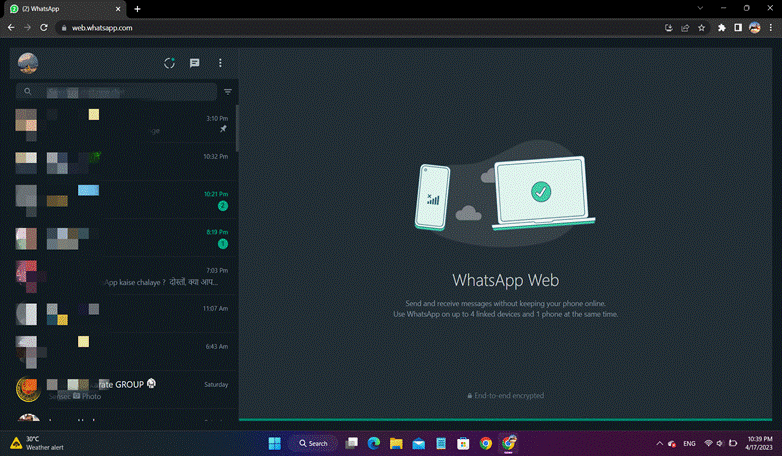
So in this way you can run WhatsApp on laptop using Web WhatsApp without any hassle.
You can easily run WhatsApp on laptop by using the method mentioned above. But to run WhatsApp in this way, you will have to go to Chrome every time. In such a situation, if you want to use WhatsApp more on your laptop, then you can easily run WhatsApp by downloading WhatsApp on your laptop.
How to download WhatsApp in laptop?
1. To download WhatsApp application in your computer or laptop, first of all you have to go to Microsoft office in your laptop.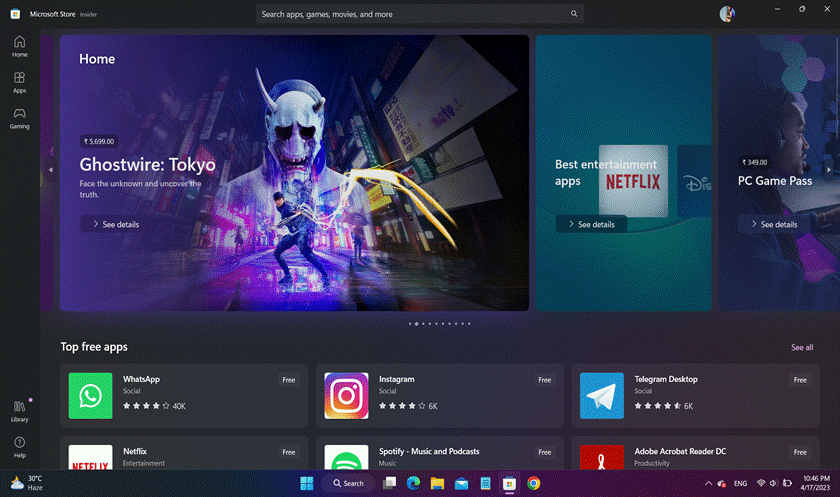
2. After opening Microsoft office, you have to search by typing WhatsApp in the search bar.
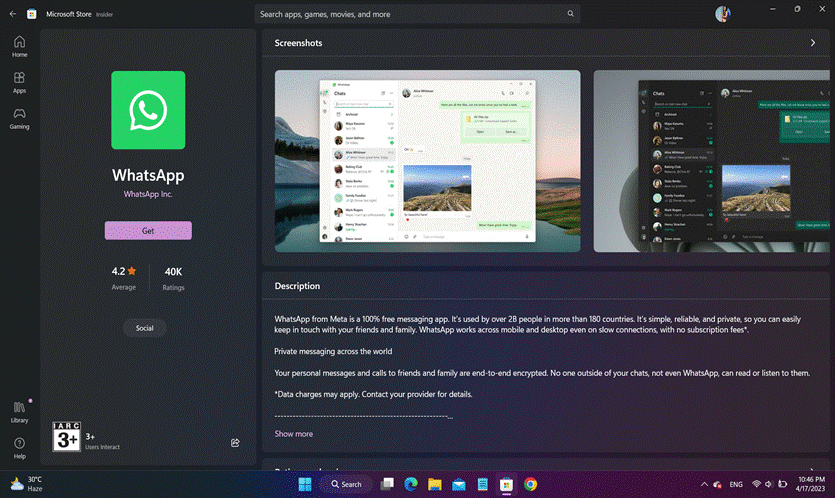
3. By doing this the WhatsApp App will appear in front of you. So by clicking on the install button visible in front of it, you can download WhatsApp on your laptop.
4. When WhatsApp is downloaded on your laptop, open it.
5. After opening WhatsApp, you have to open WhatsApp in your mobile, scan the QR code and connect WhatsApp to the laptop. As mentioned in the steps above.
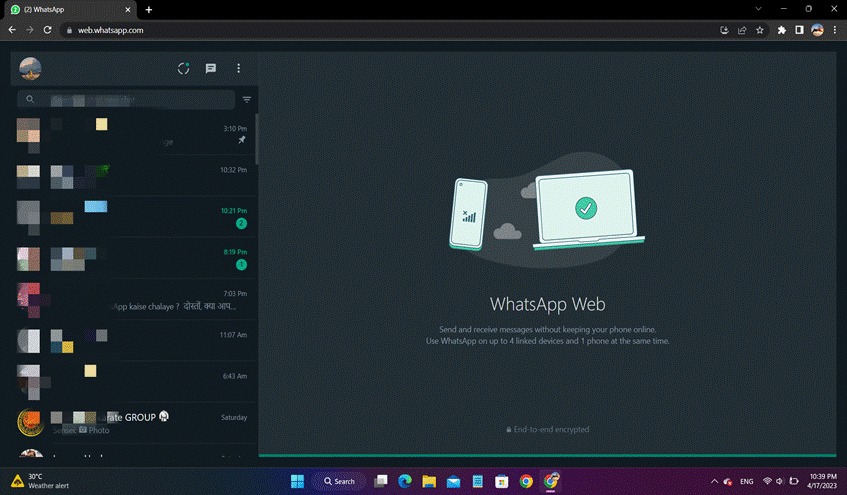
In this way, you can easily download WhatsApp on your laptop and use it easily.
Apart from this you whatsapp.com/download You can easily download WhatsApp for your laptop by visiting its website.
Also read;