
In today’s time, whenever we have to communicate with someone, WhatsApp is the number one application for that. In this you have to login through phone number. After which you can then easily interact socially with each other. But OTP is required to login to WhatsApp. Whenever you enter your phone number in WhatsApp, OTP is sent to that number.
You cannot use WhatsApp until that OTP reaches you and you verify with it. But today there are many people who want to use WhatsApp without OTP. But this is absolutely possible. In this article I will tell you how to use your or anyone else’s WhatsApp without OTP?
Accessing someone else’s account without permission is illegal and this post is written for educational purposes only.
How to use someone else’s WhatsApp without OTP?
If you want to use WhatsApp of someone else like your GF or BF on your mobile, that too without receiving OTP, then you can take the help of WhatsApp Web for that.
1If you want to use WhatsApp on your phone without OTP, first open WhatsApp on that person’s phone,
2Now after this, when WhatsApp opens, click on the three dots on the top right side, Then go to Linked Devices from here,
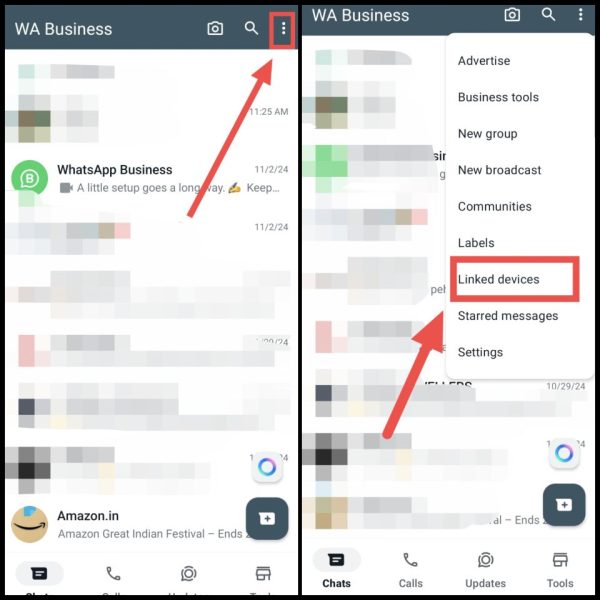
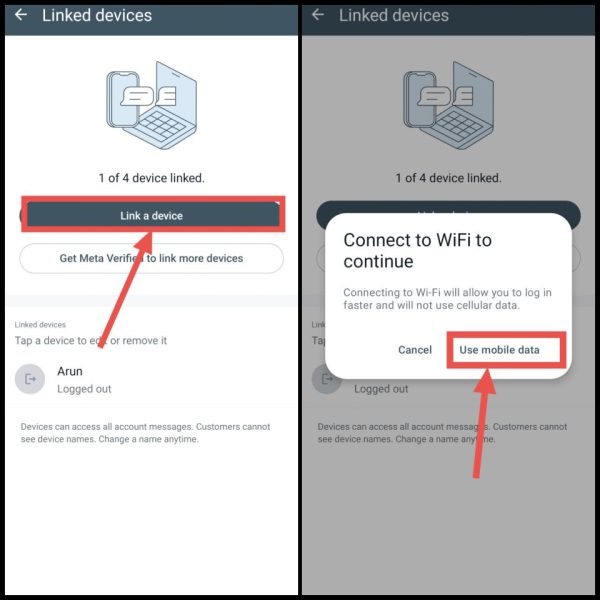
3Then now click on Linked a Device here, After which you have to click on Use Mobile Data here,
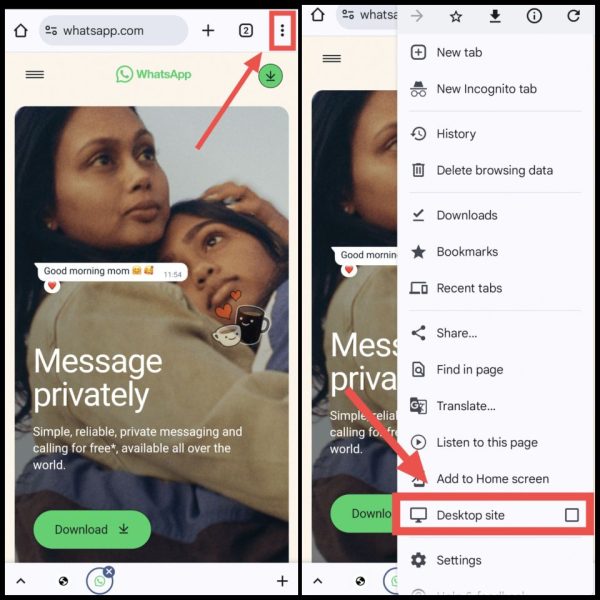
4Now you can use it in your phone or laptop/computer, web.whatsapp.com Have to go to the official website. Then you have to enable the Desktop Site by clicking on the three dots given on the right side.
5Now you will get a QR Code in WhatsApp Web, You have to scan this QR Code with the open scanner in WhatsApp on the other person’s phone,
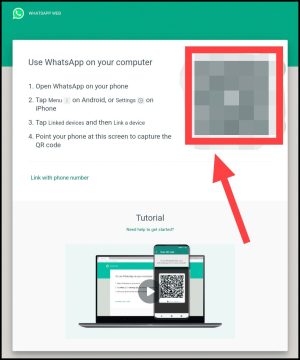
6After which his WhatsApp will easily run on your phone with the help of WhatsApp Web without OTP,
In this way, you can use anyone’s WhatsApp on your phone without OTP and read all their chats. But if you are facing trouble in logging into your WhatsApp, OTP is not coming or you want to run your own WhatsApp without OTP, then you can follow the method mentioned below.
How to use WhatsApp without OTP? (second way)
1First of all, open the WhatsApp app in your phone,
2Now after this, first select English language and click on Agree & Continue, After that enter your phone number here and then click on Next,
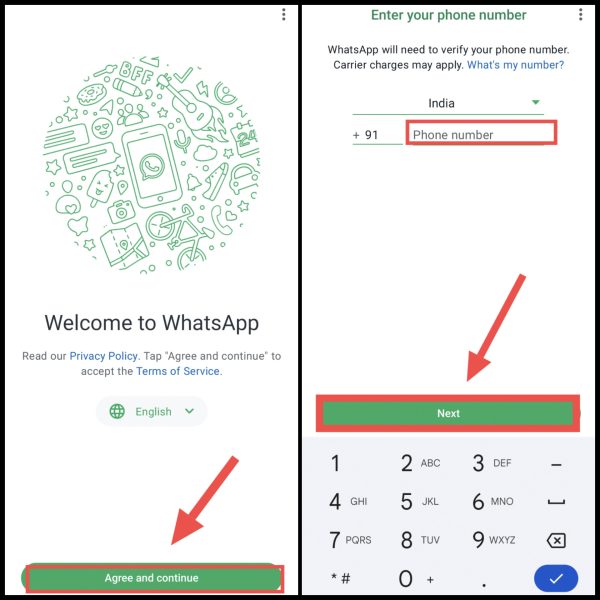
3Then after this click on Yes, Then click on Continue here to get verified through automatic call to run WhatsApp without OTP,
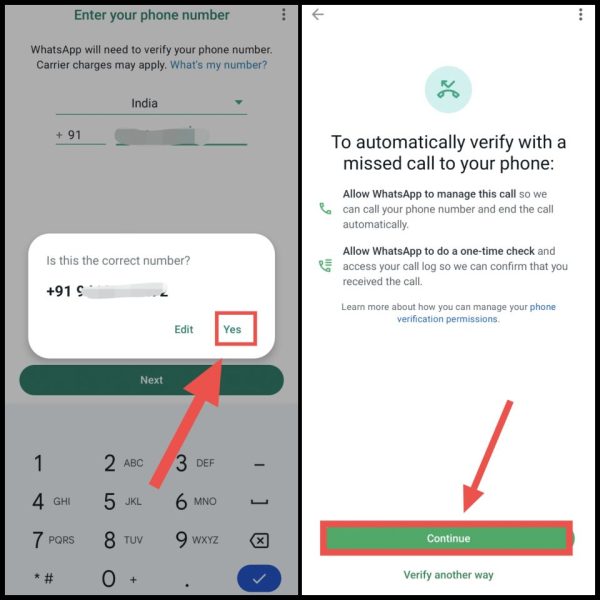
4After this, click on Allow and allow calls and all other permissions, After that a pop up of Requesting a call will appear again,
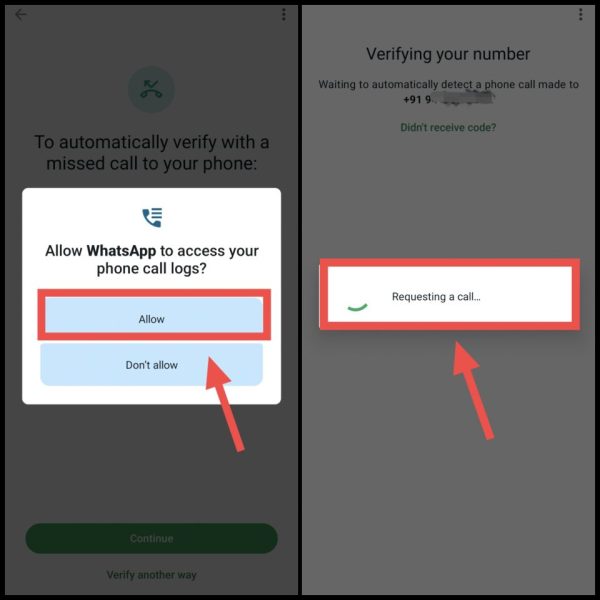
In this way you will receive a call and it will also be disconnected automatically. After which your WhatsApp will be verified. Also, you will be able to use WhatsApp by keeping your name, profile picture etc.
Note: If this type of option is not available in your phone, then instead of the option to enter OTP, you have to click on the Request a call option below, after that a call will come on your same number in which you will be able to login your WhatsApp by dialing the given code.
If both OTP or Call are not coming on your number or you do not want to run WhatsApp from your own number, then to run WhatsApp without OTP, you can also run WhatsApp with the help of third party number provider apps.
How to run your own WhatsApp without OTP?
1First of all you can go to Play Store TextPlus Download the application named.
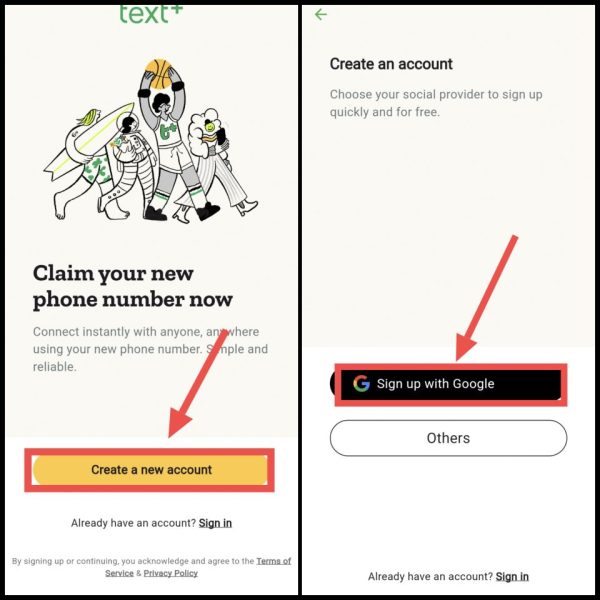
2After that open the app, Then click on Create an account here, Then now you click on Sign Up With Google,
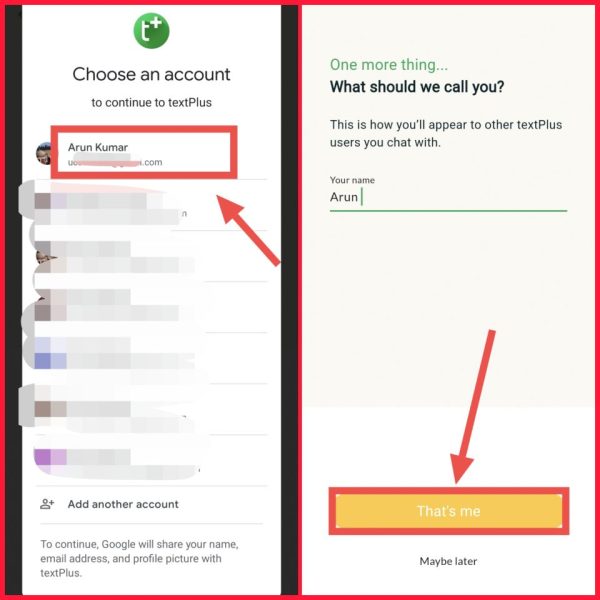
3Now after this, select the email ID with which you want to sign in to TextPlus, Then after that you click on Thats Me,
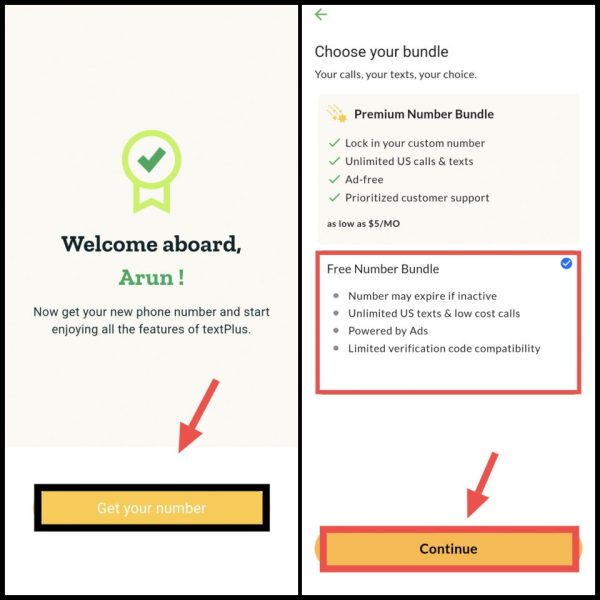
4Now click on Get Your Number, Then after that select Free Number Bundle and click on Continue,
5Now after this you click on Select Your State, Then you have to select California here, If you select any other state then you will not get a virtual number,
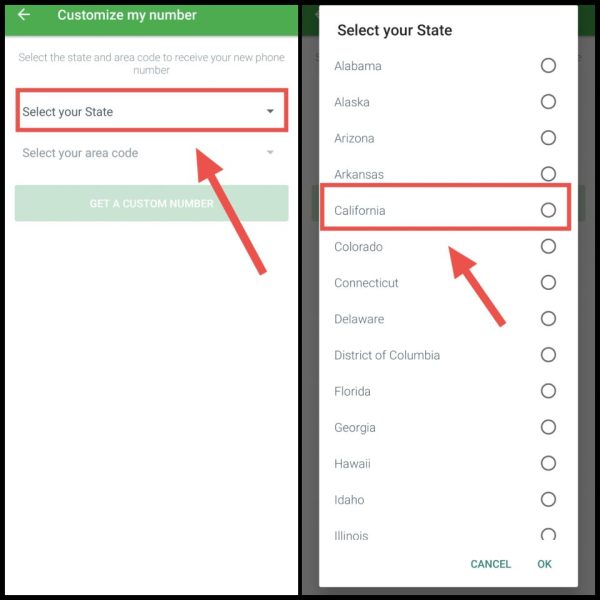
6Now after this again click on Select Your Area Code, Then from here you select any random code as per your choice and click on OK,
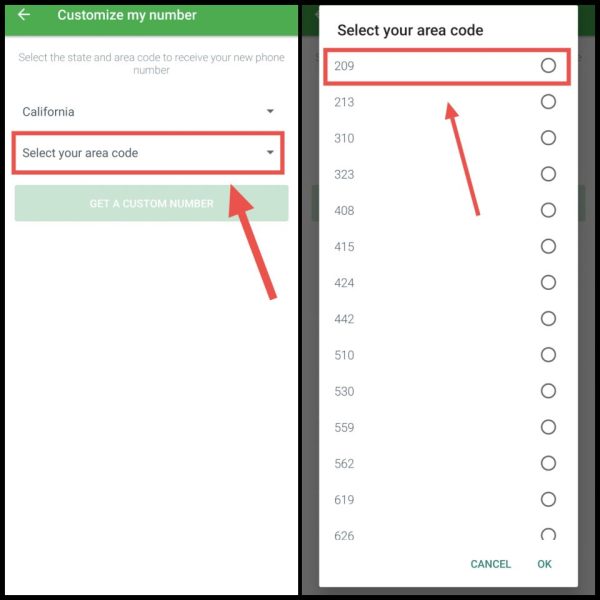
7Now after this again click on Get a Customer Number, After that you will get the virtual number,
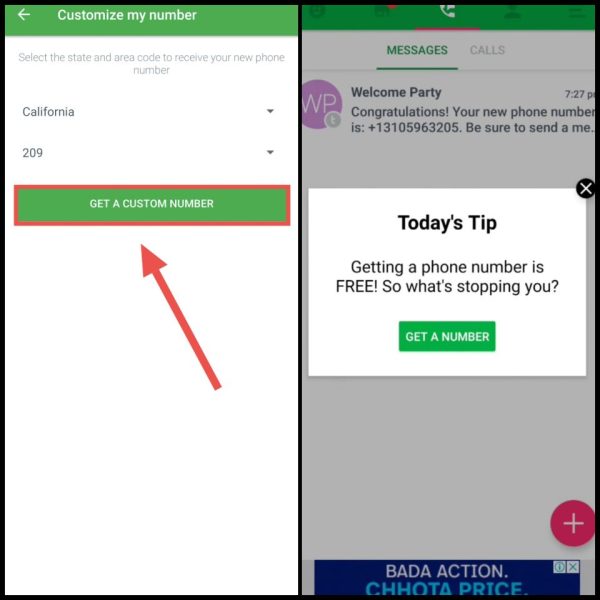
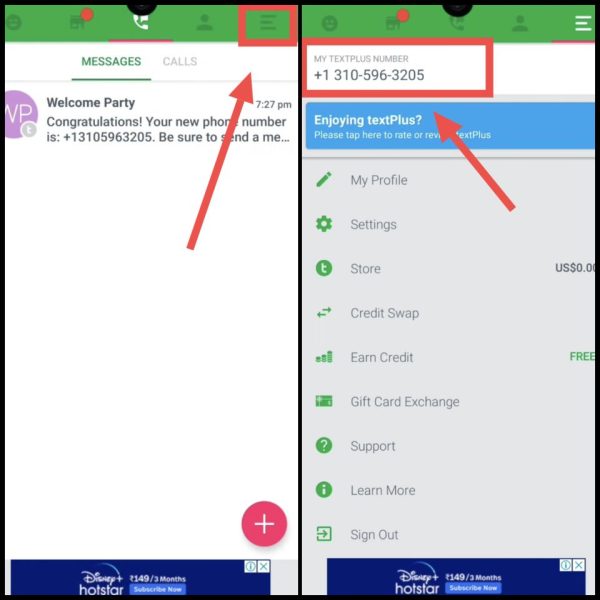
8Then now click on the three lines on the top right side of this app, Then here you will see your virtual number,
9Now open the WhatsApp app and come to the login window, enter the same number here and then click on Next, After that now click on Verify Another Way,
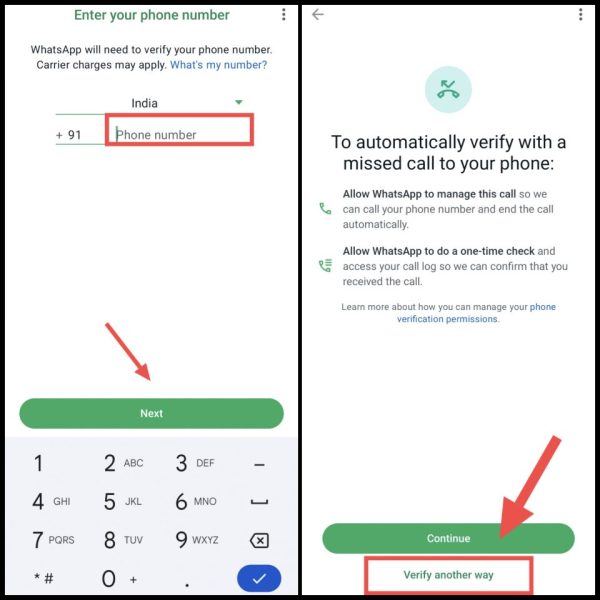
10Now select Voice Call here and click on Continue, You will then receive a call which will appear on TextPlus, You have to pick it up and from there you have to take OTP,
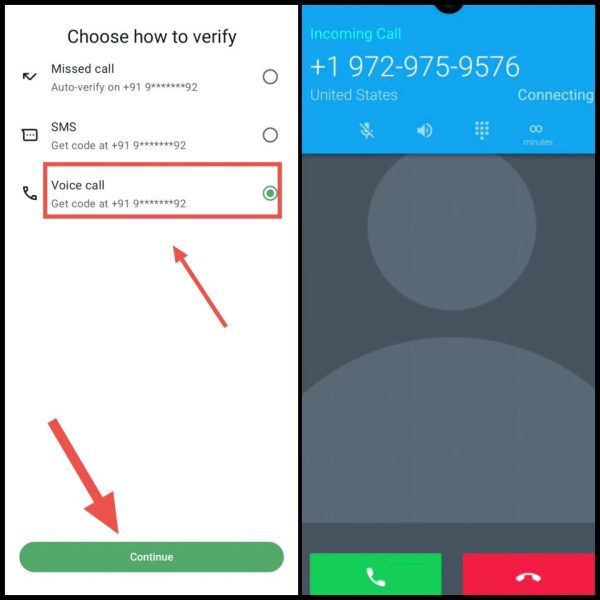
11Then by entering the OTP received from the call, you will be able to create a WhatsApp account,
In this way you can use WhatsApp in your phone without OTP. If you face any problem in these steps then you can ask by commenting below.
Also read: