

To make a video call from a laptop, you must have an internet connection. There are many apps available for making video calls on laptops. In today’s article, I will tell you how you can make video calls from your laptop through Whatsapp, Skype, Google Meet and Zoom.
4 ways to make video calls from laptop
To make a call from a laptop, first connect your laptop to a WiFi or hotspot. Below I have told you some methods to make calls from laptop. Each method has been explained in detail.
1) Through WhatsApp
Using WhatsApp application, you can make video calls not only from mobile but also from your laptop. You can download the WhatsApp application for free from the Microsoft Store. If you do not want to download the application then you can use WhatsApp Web.
1: First of all, open your mobile’s WhatsApp on the laptop with the help of Whatsapp Web. Now you will come to a screen like this.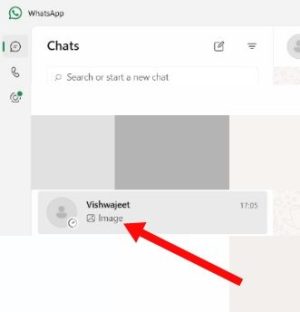 2: After this, click on the person to whom you want to call.
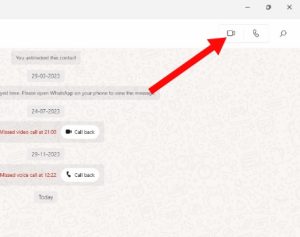 3: Now click on the video call icon visible above the chat. Your video call is being received.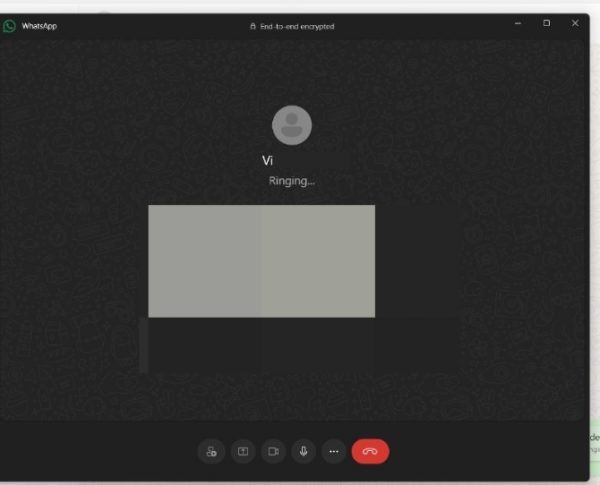
Yes, it is that easy to make calls from WhatsApp on a laptop.
2) Zoom through
To use Zoom application or website, you will have to create an account on it. After that you can easily make calls using Zoom. Let us know how to make a video call by creating an account on Zoom.
1: First of all, open any browser on your laptop. Zoom Go to the website of. Now click on the Sign In button visible on the right side.
Note: If you have ever used the Zoom application before, then login directly to your account. I will tell you how to create a Zoom account through Google account, because it is easy and effective.
2: After this, click on the Google button shown below.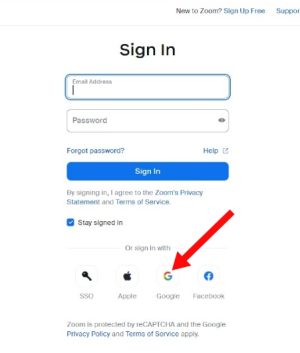 3: After this enter your Gmail ID here. After this, click on the Next button shown below.
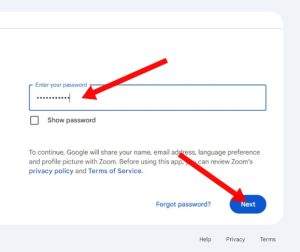
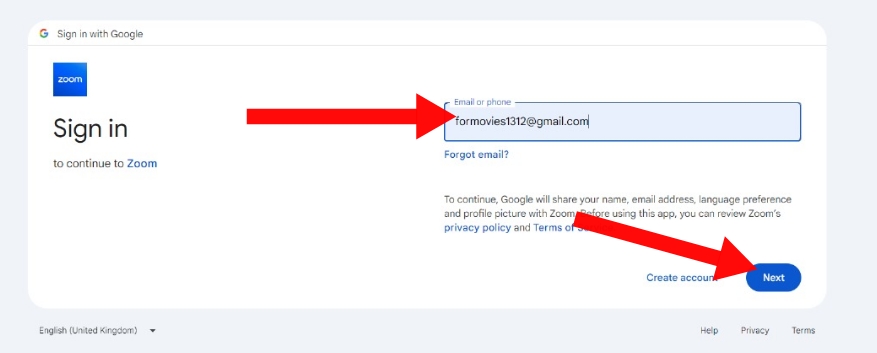 4: Now enter the password of your Gmail ID. After this click on the Next button shown below. After this click on the Continue button on the next page.
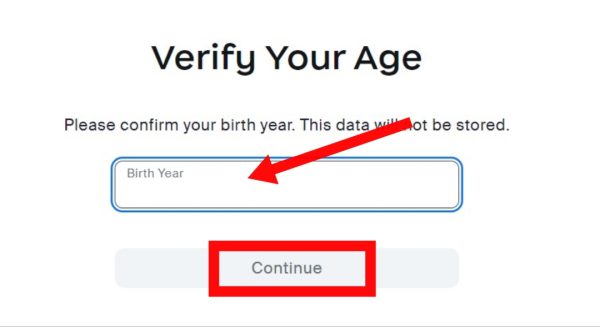
 5: After this enter your birth year for age verification. After this you have to click on the Continue button.
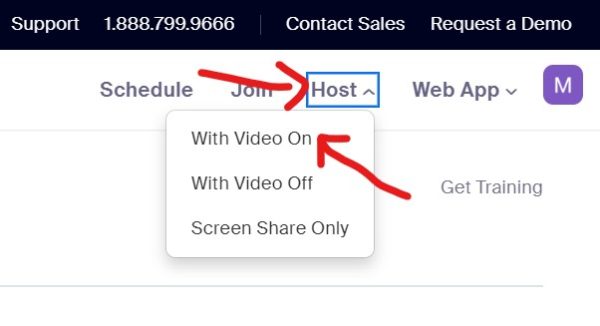
 6: Your Zoom account has been successfully created. Now you can easily make video calls. To make a video call, click on the Host button visible on the right side. After this click on the With Video On button.
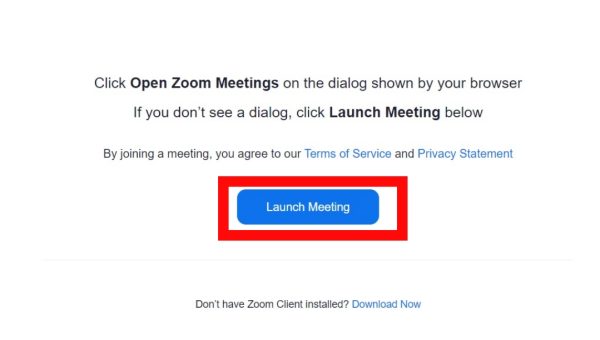
 7: Now click on the Launch Meeting button.
 8: Your call has been successful.
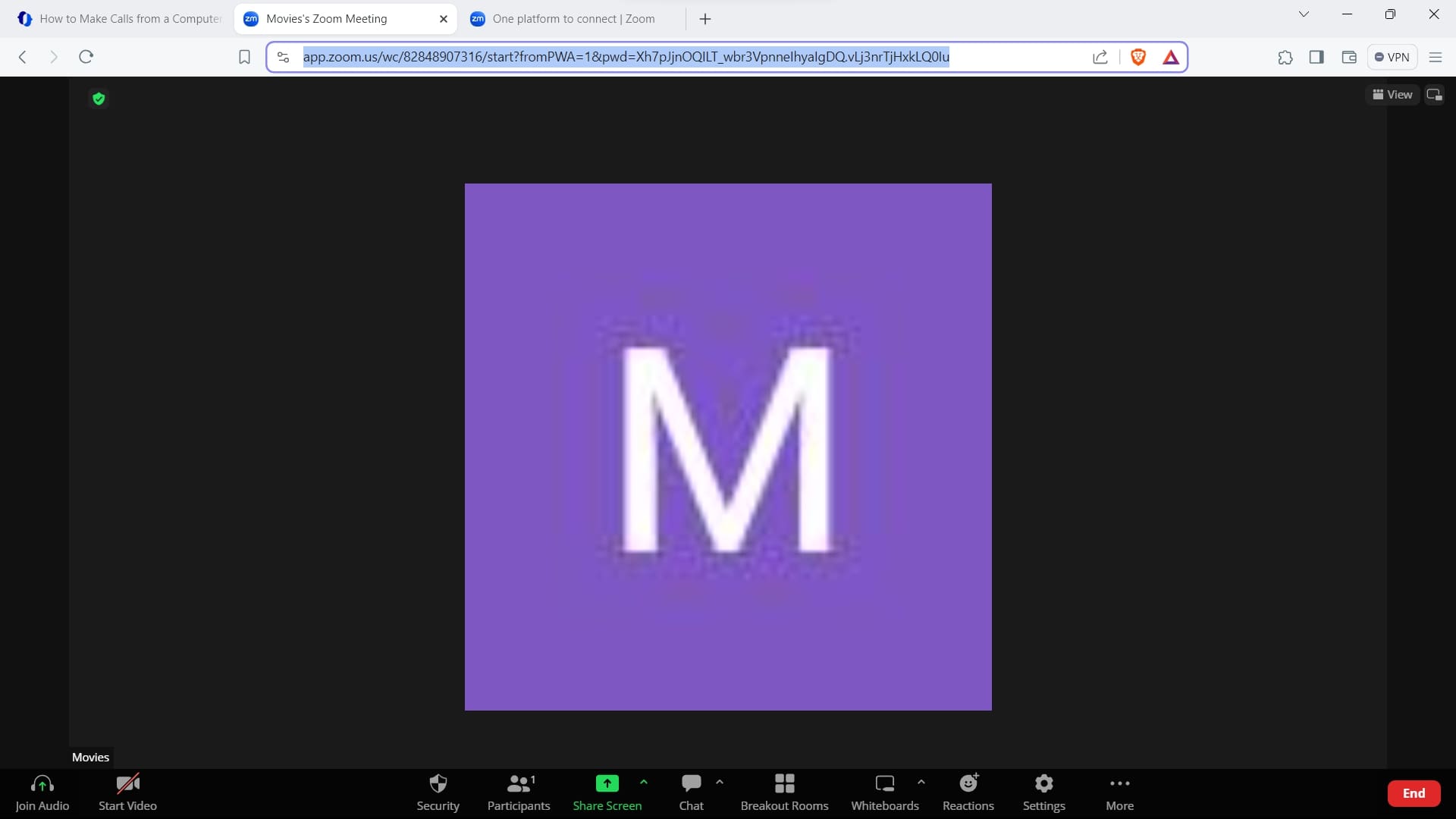 Send the link shown in the search bar to the person you want to add to your call. After that, you will easily get access to your call through the link.
3) Via Skype
1: First on my laptop Skype Visit the website of. Now click on the Sign In button. After this click on the Use Skype Online button.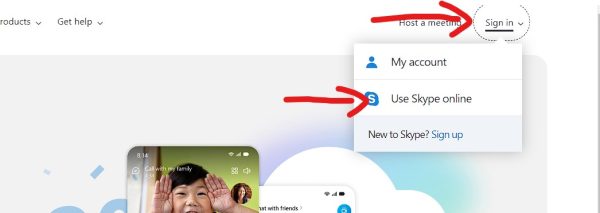
Note: If you don’t have a Skype account, create one first.
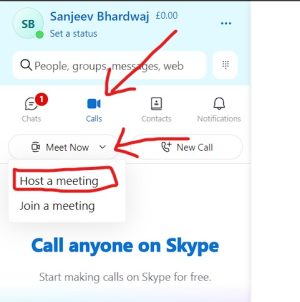
2: Now enter your Gmail ID. Enter only the Gmail that is linked to your Skype account. After this enter your password. After entering the password, click on the Sign In button shown below.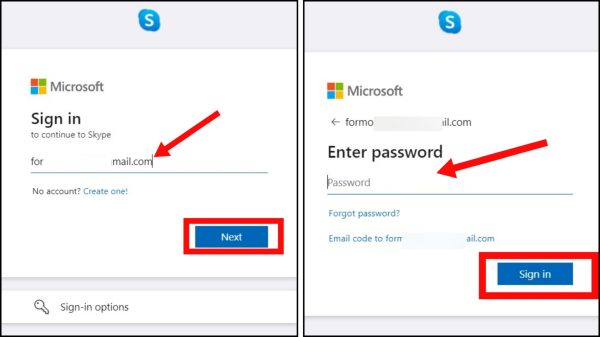 3: After this, click on the Calls button visible on the left side. Now click on the Host a Meeting button to make a video call.
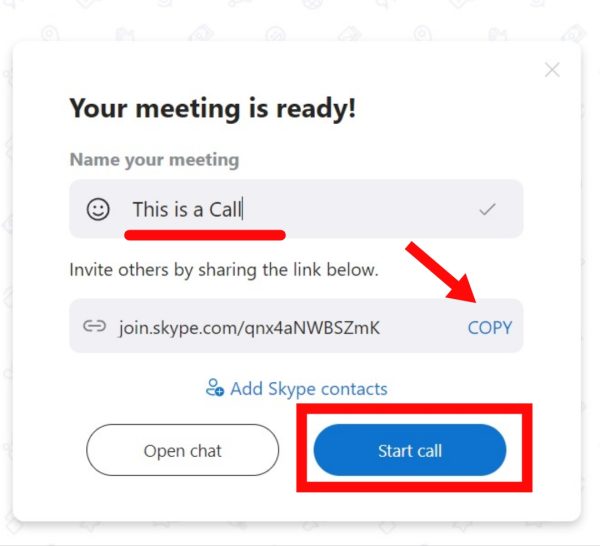
 4: Now enter the name of your call. You can enter any name. After that, copy the link of your call by clicking on the Copy button. After this click on the Start Call button.
 5: Your Skype video call has been established. Send the copied link to whoever you want to add to the call. After clicking on the link, the person will be added to your call.
So in this way you can make video calls through Skype from your laptop.
4) Through Google Meet
1: First of all Google Meet Go to the website of. Now click on the New Meeting button to start the video call. 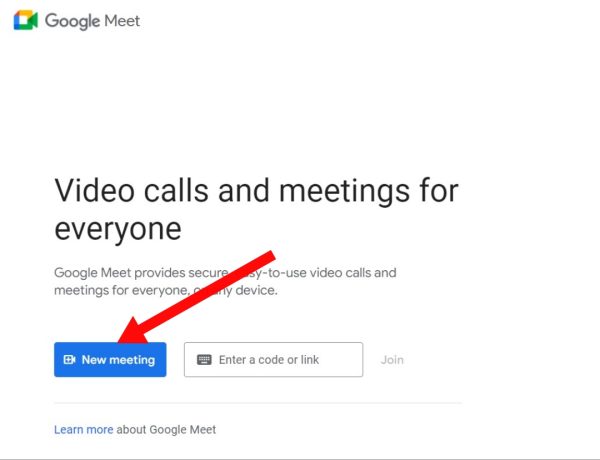
2: Now click on the Start an Instant Meeting button to start the video call. Your video call has started.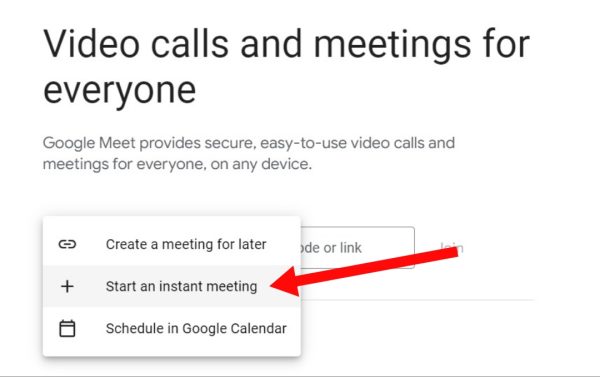 3: Send the meeting link to anyone you want to join your call. After clicking on the link, the person will be added to your call. To copy the meeting link, copy it from the search bar or the copy button shown below.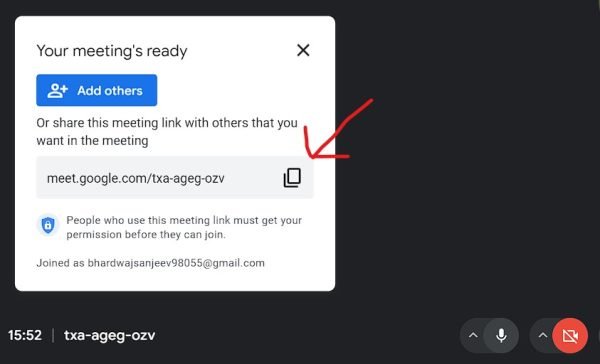
In this way, you can easily make video calls with the help of Google Meet from your laptop absolutely free of cost. In this article, very easy ways to make video calls from laptop have been explained. If you have any question then comment in the comment box below.
Also read: