
What is mail merge?
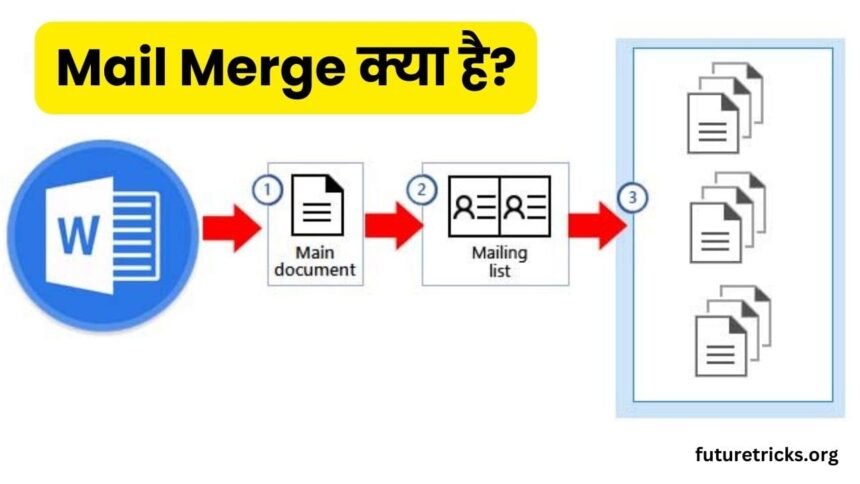
Mail Merge is a feature of MS Word that allows the user to send a letter or document to different people. It creates a new document by merging the word document with the document containing excel information.
For example, suppose there is a company that wants to inform its shareholders about the Board of Directors meeting and they have to give this information to many people, then it will take a lot of time to send a letter to every shareholder. So to save your time and send the letter to more people, you will first have to make a list of names and addresses of all your shareholders.
Keep in mind that you will have to make this list in MS Excel so that you can easily connect this list with your letter. Mail merge does the work of connecting the letters with the list and prepares letters for each person based on their name and address, then when all the letters are ready, they are sent to them.
How many types of mail merge are there?
Mail merge is mainly of two types –
- Letter/mail merge – This type of mail merge is used to create letters and other documents like labels, envelopes, etc. In this type of mail merge, you can change information like receiver name, address etc.
- Email merge – Through this type of mail merge, you can send email to many receivers simultaneously. You can use the database of email addresses to mail in this way. And using this information, you can easily change information like receiver name, address, company in every mail. With this, your mail will be slightly customized and will look good.
Both types of mail merge are great for businesses, organizations, and individuals who need to send an email or document letter to multiple people at once. By using mail merge you can complete your work very easily and save your time.
Also read; How to type Hindi in MS Word?
Benefits of mail merge;
You can use Microsoft’s Mail merge feature for many things because it gives you all the benefits like –
1. Saving time
Through mail merge, you can send mail to many people at once and the best thing is that it does not take much time to merge mail. If you have already prepared the data list, then you can send mail to people in a very short time.
2. Saving effort
If there is no mail merge and you are asked to send the same letter to a thousand people, then even if you do not change the entire letter and only change the name and address of the receiver, you will still have to work hard in creating letters in the names of thousands of people and your time will also be wasted.
3. Error Reduction
Suppose, if you are sitting and changing the names and addresses in the letters of thousands of people, then there is no doubt that you may make a mistake in putting so much data together, but if you use mail merge, then you will be saved from this kind of mistake because the process of sending the mail is automatic, due to which there is no mistake in data entry and there is no mismatch of any information.
4. Saving money
Mail merge also saves you money! If you buy a designer template to make an invitation card or to write a letter, then a lot of your money goes into it, but when you use mail merge, you get to create your own template in the mail merge itself.
5. Customization facility
It is not necessary that if you want to change something in the letter, you will have to change the entire letter. You can make changes in all the letters simultaneously by changing the main document. Because when you change something in the main document, the entire document automatically changes.
6. Increase in Efficiency
Mail merge gives you the facility to send documents or letters to many people at once, so that you can save a lot of your time and finish your work quickly and can spend your time on other important tasks.
How to use mail merge?
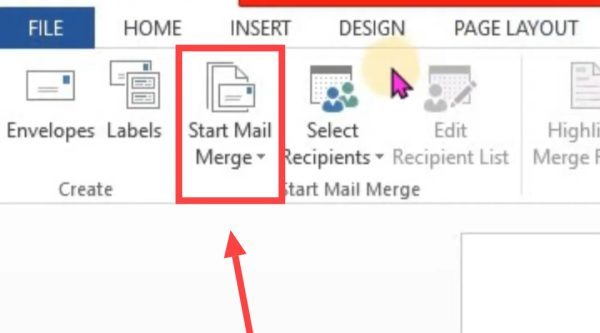
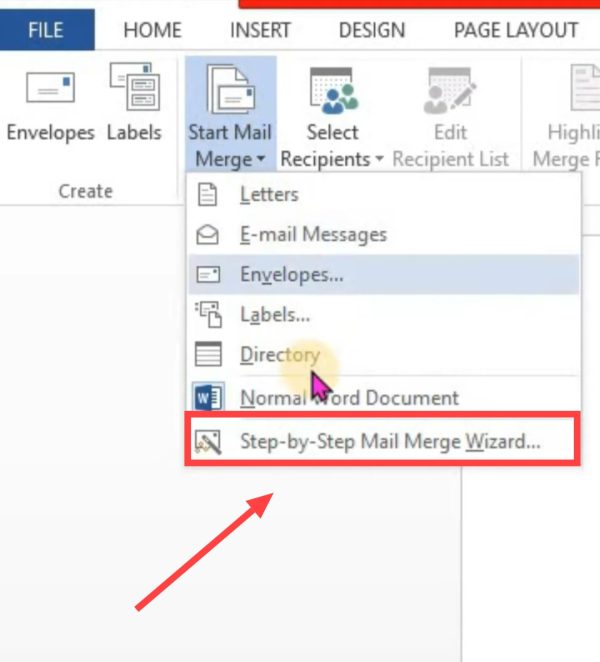
1. First of all Microsoft Word Open the. After that click on Start Mail Merge in the menu.
2. Now click on Step-by-Step Mail Merge Wizard from the Dropdown Menu.
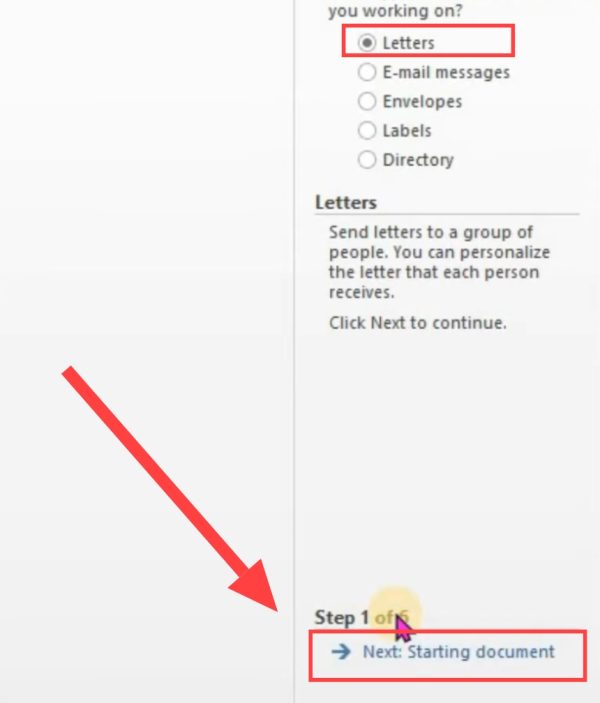
3. After this select Letters then click on Next: Starting Document.
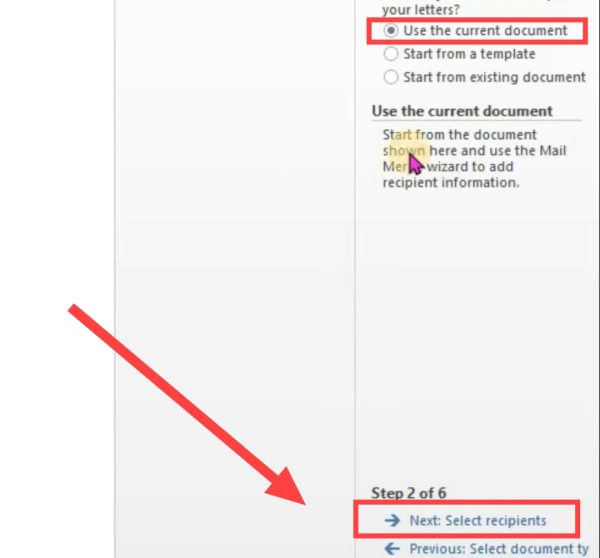
4. Now select Use the current document. Then click on Next: Select recipients.
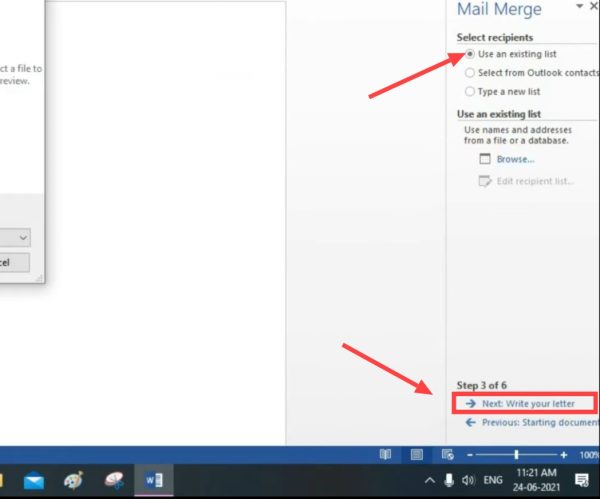
5. Now select Type a new list. Then click on Create.
6. Now enter First Name, Last Name, Company, Address, City, State etc. here. Then click on OK.
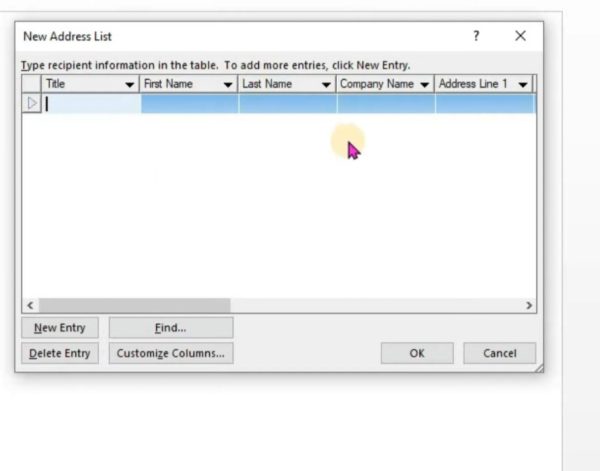
7. Now click the OK button here again. Here now click on Edit recipients list. Then click on Next: Write your letter.
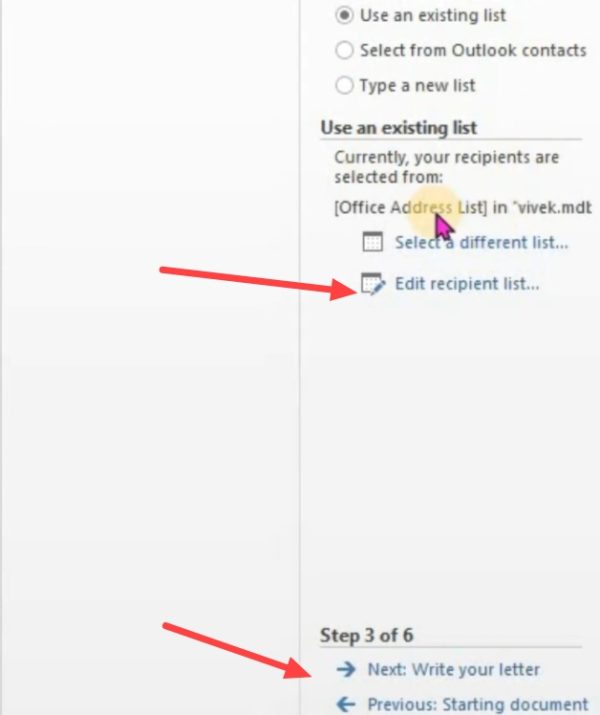
8. Now write the letter here as per your convenience. Now to add the addresses of all the recipients, click on the Address Block option.
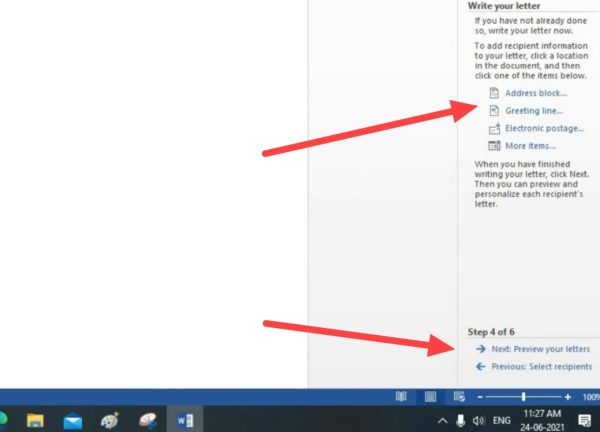
9. Now tick Insert Address Block on the right side. Then click on OK.
Note: If you want to cross verify the address of any recipients then click on Match Fields.
10. Now click on Greeting Line.
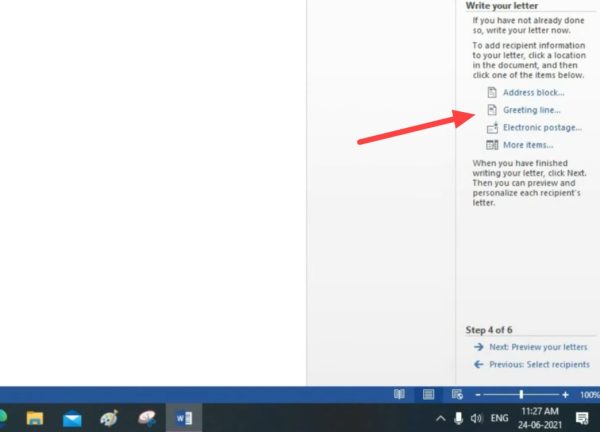
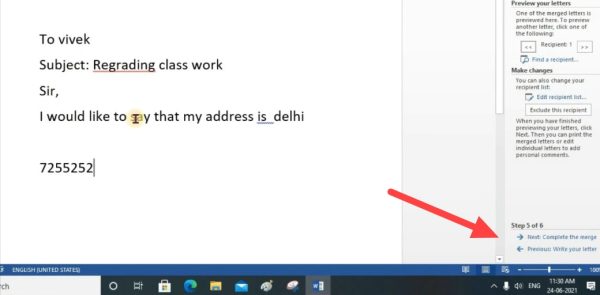
11. Here enter an attractive greeting line inside the box and then click on OK. Now after that click on Preview your letter.
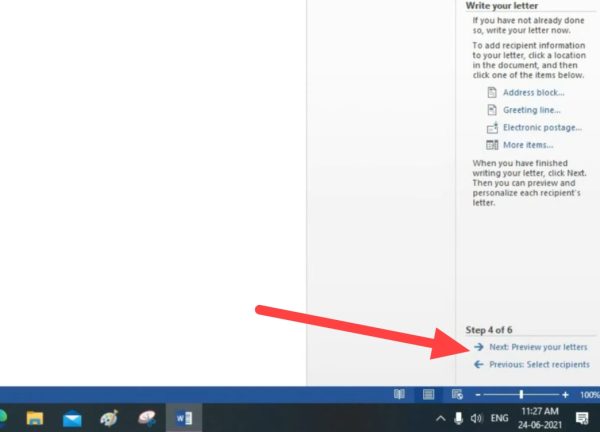
12. Despite this, click on Next: Complete the merge.
13. Now you can also print it by clicking on Print.
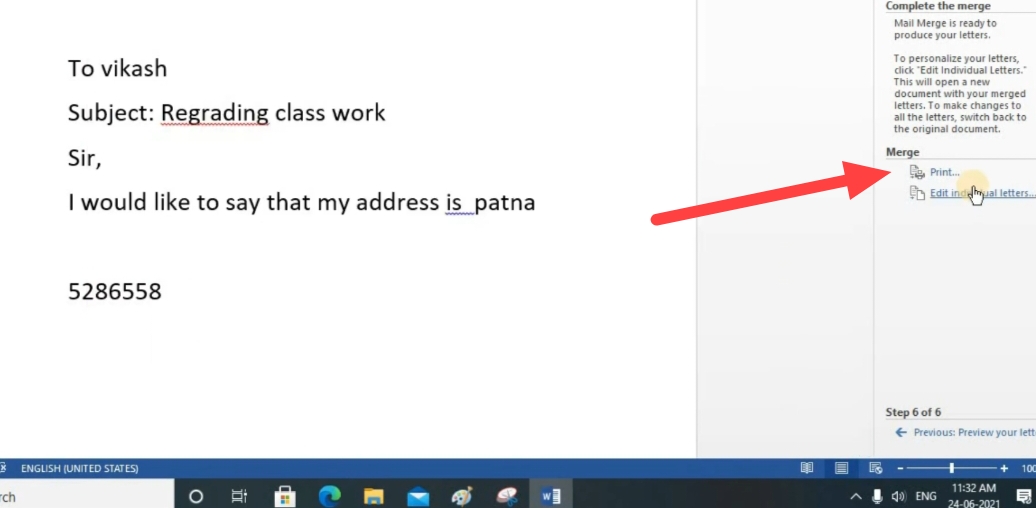
In this way you can easily do Mail Merge in MS Word.
You can also watch this video for more information.
Related questions
Using mail merge you can send 400 to 1500 e-mails to receivers every day. Although there is no limit on sending mails in Mail Merge, but in Google Apps, Google workspace and Gmail, you can send only limited mails.
There are two types of mail merge – Common mail merge and Email mail merge.
There are total 5 to 6 steps in mail merge, by following which you can easily mail merge any document.
To use mail merge, you must have a main document and a mailing address. You can also understand that you must have a source list and template layout.