

If you want to call someone and your name and photo are not shown even after having Truecaller, then in today’s post we will know how to remove your name, number and photo from Truecaller in 1 click?
Whenever someone like your friend [जिसके फ़ोन में आपका नंबर सेव है] When you create an account on truecaller and allow permission to your contacts, then the truecaller app stores all its contacts on its server, and in this case your number also gets saved in its database. Whether you have created your account on truecaller or not!
How to remove your name, photo and number from Truecaller?
If you do not use Truecaller and want to remove your name and number from Truecaller, then follow the process given below:
Step 1 – first of all you truecaller.com/unlisting Go to the website of and then scroll down a bit and click on I want to unlist.
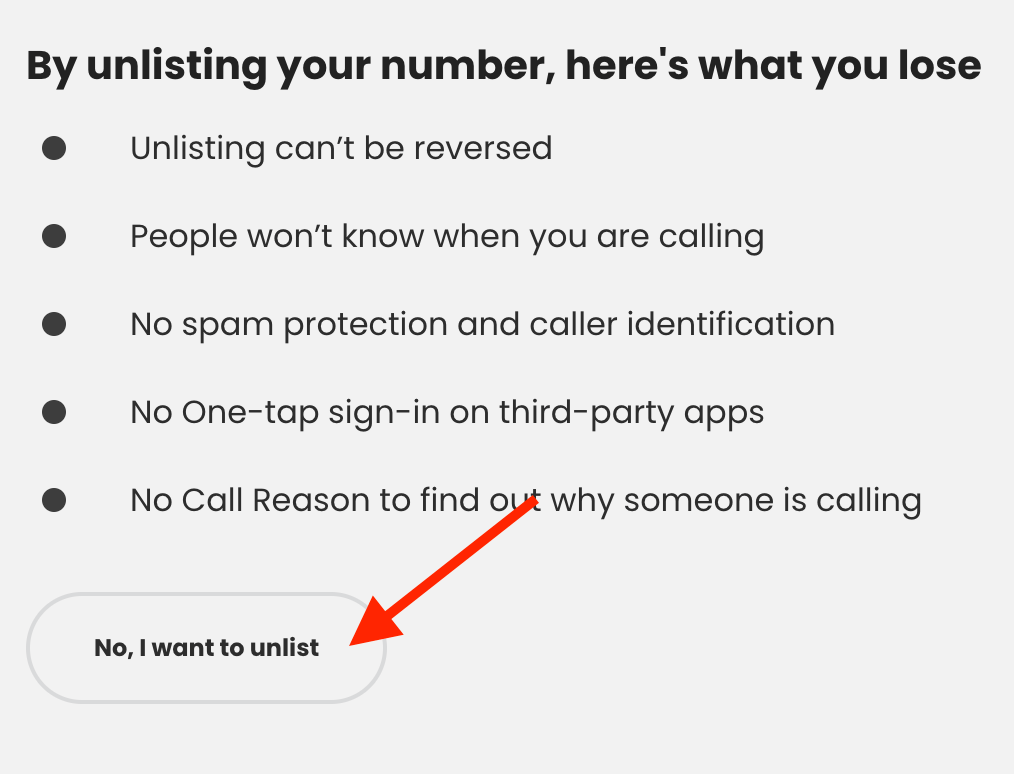
Step 2 – Now you will be asked for your number and reason for unlisting.
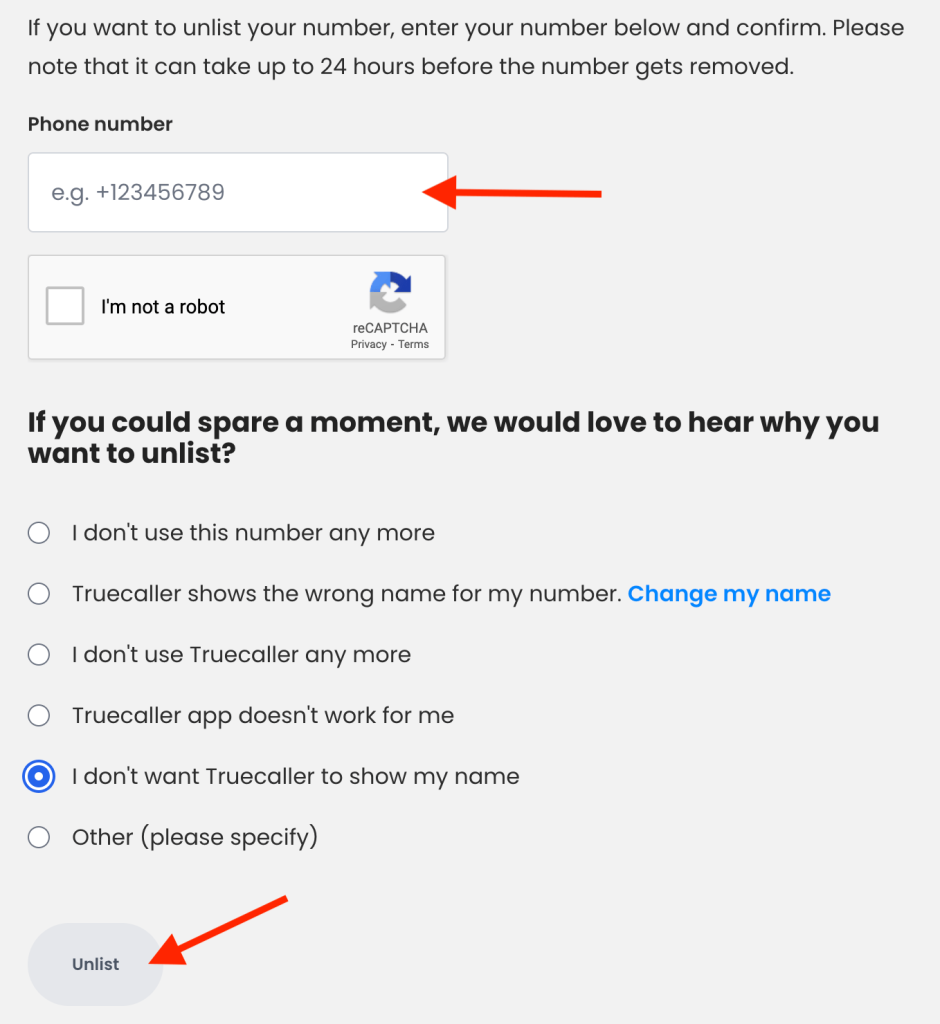
Step 3 – Now whatever number you want to delete, you have to enter it with +91, enter the captcha and then select any one reason and click on Unlist.
Step 4 – Now if the number you have entered does not create an account on truecaller, then OTP will come on your number, you have to enter it and then within 24 hours truecaller will remove your number, name and photo from its server.
But if an account is already created on truecaller with the number you have entered, then a popup like this will appear in front of you.
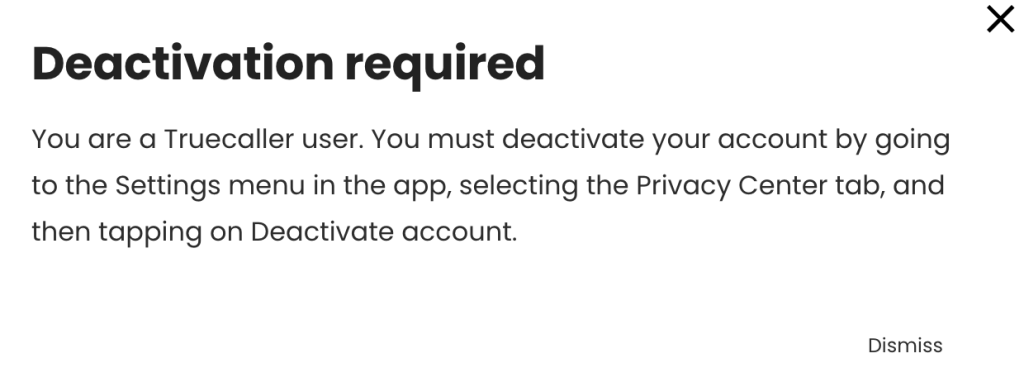
This means that you cannot delete your number through the online website, but now you will have to deactivate your account by going to the Truecaller App. Its method is described below.
How to remove your name and number from Truecaller App?
Step 1. First in your phone Truecaller app Open the. After this you have to login and then click on the 3rd line on the right side of the homepage.
Step 2. After clicking on the three lines, the last option is to click on Settings.
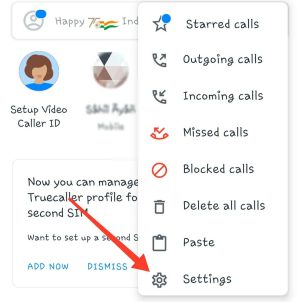
Step 3. After tapping on the Settings option, click on the Privacy Center option at the bottom.
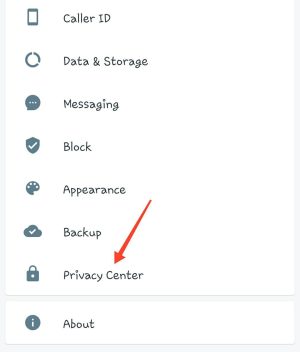
Step 4. After tapping on the Privacy Center option, click on the Deactivate option at the bottom.
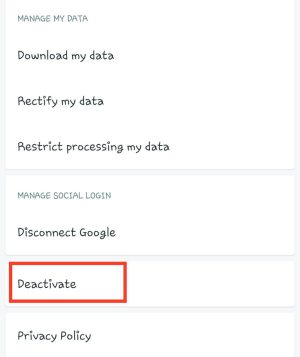
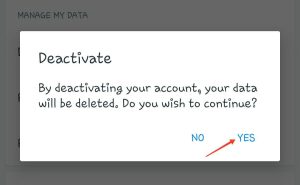
Step 5. After tapping on Deactivate, a popup will show in front of you. To deactivate the account, click on Yes option. By doing this all your data will be deleted from Truecaller.
Step 6. After deactivation is done, you simply have to click on the Truecaller Unlist link given above. After going to that page, enter your mobile number and country code and click on Unlist.
Your number will be removed from Truecaller within 24 hours of tapping on the Unlist option.
Also read: